Chrome Extension Guide
Last Updated: 2026-02-24 Extension Version: 2.0.1
Overview#
The cloak.business Chrome Extension protects your privacy by automatically anonymizing PII before sending messages to AI assistants like ChatGPT, Claude, Gemini, DeepSeek, Perplexity, and Abacus.ai. Your sensitive data is replaced with anonymized placeholders before it reaches the AI service.
Key Benefits:
- JIT Protection: Intercepts messages before they're sent
- Reversible Encryption: Decrypt responses to see original values
- 6 AI Services: Works with ChatGPT, Claude, Gemini, DeepSeek, Perplexity, and Abacus.ai
- 48 Languages: Multi-language PII detection with country-specific entity types
- Seamless Integration: No copy-paste required
Table of Contents#
- Installation
- Initial Setup
- Enabling Protection
- Step-by-Step Workflow
- Multi-Language Support
- Preset Browser
- Settings & Options
- Supported AI Services
- Anonymization Methods
- Troubleshooting
- FAQ
Installation#
From Chrome Web Store#
- Visit the cloak.business Chrome Extension page
- Click Add to Chrome
- Click Add extension in the confirmation dialog
- The extension icon appears in your toolbar
Verify Installation#
After installation, verify the extension is active by navigating to your browser's extensions page:
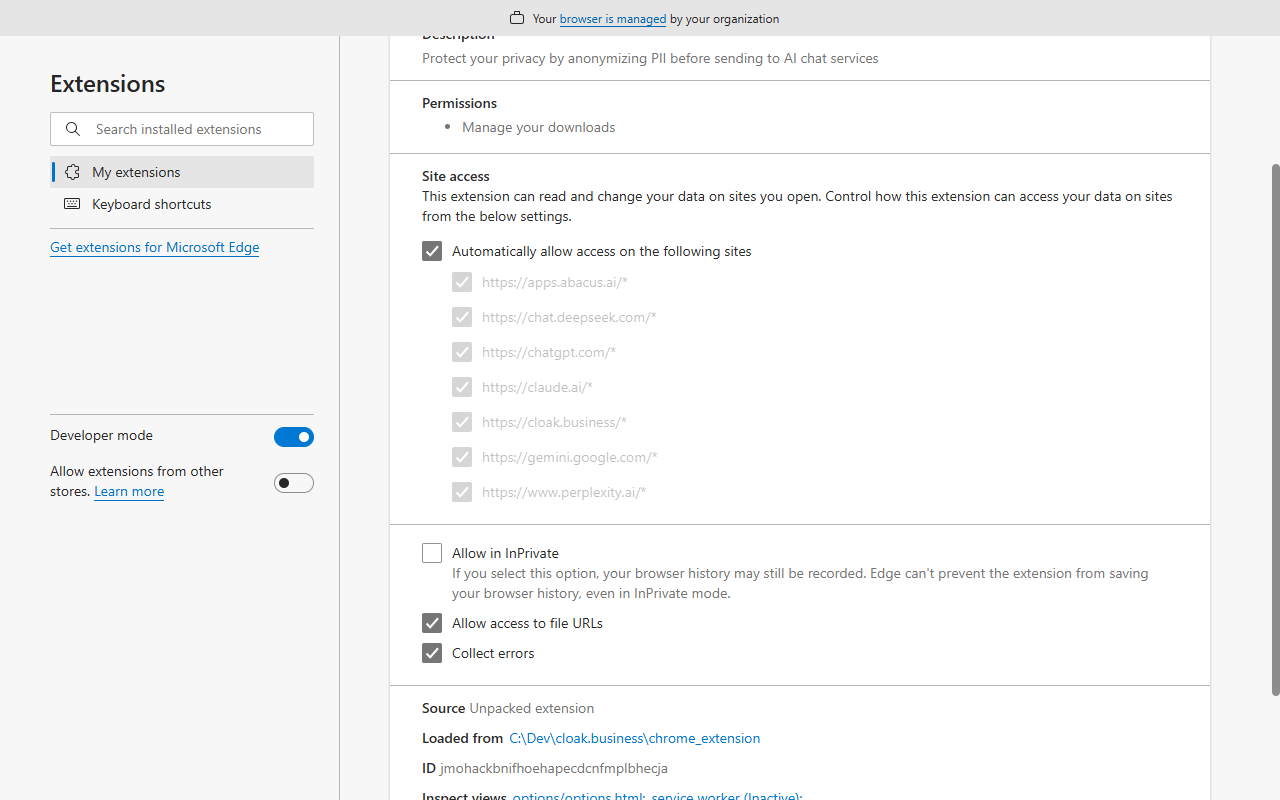 Extension Installed
The cloak.business extension should appear in your extensions list with version 2.0.x.
Manual Installation (Development)#
- Download the extension from your cloak.business dashboard
- Open Chrome and navigate to
chrome://extensions - Enable Developer mode (toggle in top-right)
- Click Load unpacked
- Select the
chrome_extensionfolder
Initial Setup#
First-Time Login#
When you first click the extension icon, you'll see the Sign In Required state. You need to authenticate with your cloak.business account.
Enter Your API Token#
- Go to cloak.business and sign in to your account
- Navigate to Dashboard > API Keys
- Create a new API key and copy it
- Paste it in the extension popup and click Sign In
Connected State#
Once authenticated, the popup shows your account status:
- Your email address
- Plan type (Free, Professional, Enterprise)
- Token balance
- Protection toggle
- Preset selector
Enabling Protection#
Navigate to an AI Platform#
Open ChatGPT (or another supported AI platform). Initially, protection is disabled:
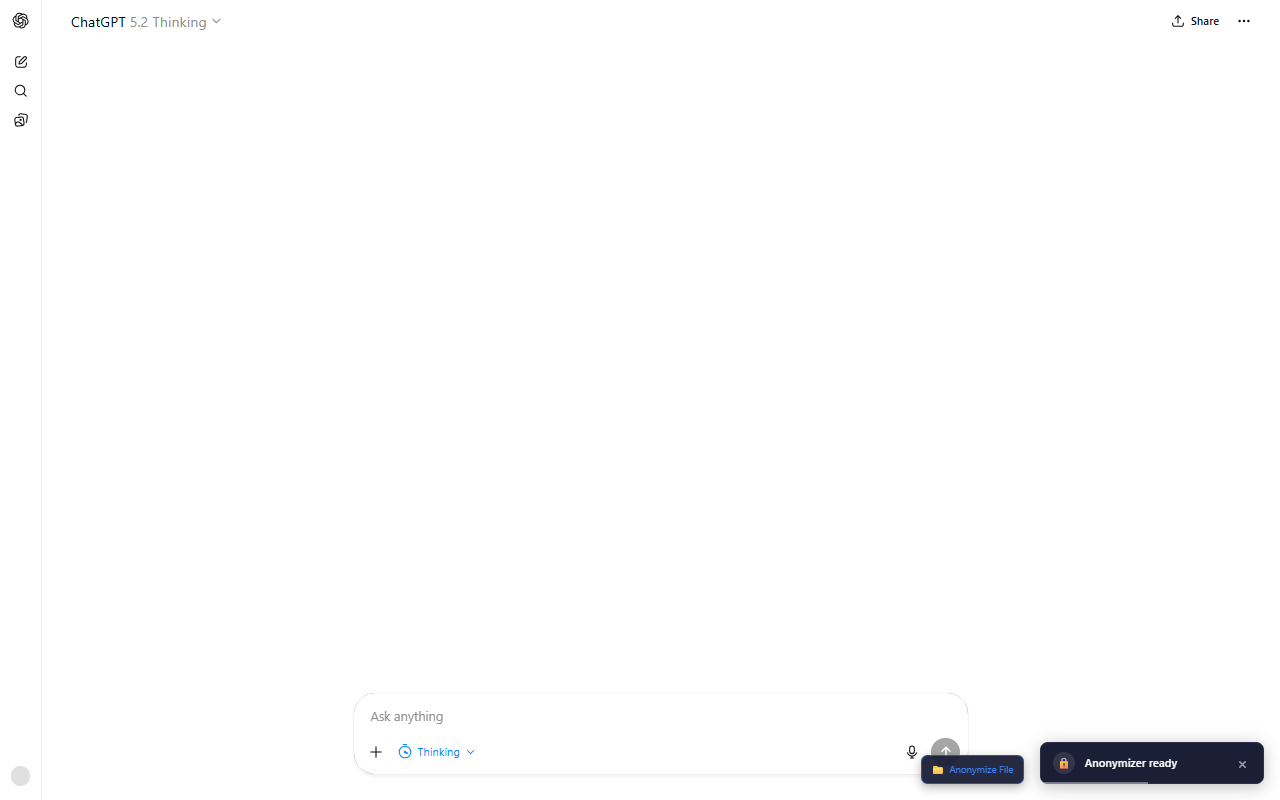 ChatGPT Unprotected
Notice the ChatGPT interface is ready but the extension hasn't been activated yet for this site.
Enable Protection#
- Click the extension icon in your toolbar
- Toggle Enable Protection for this site
- The extension icon shows a green checkmark when active
Once enabled, you're ready to send protected messages. The extension will intercept all outgoing messages and check for PII.
Step-by-Step Workflow#
This section shows the complete anonymization workflow using ChatGPT as an example.
Step 1: Type Your Message#
Enter your message containing personal information in the chat:
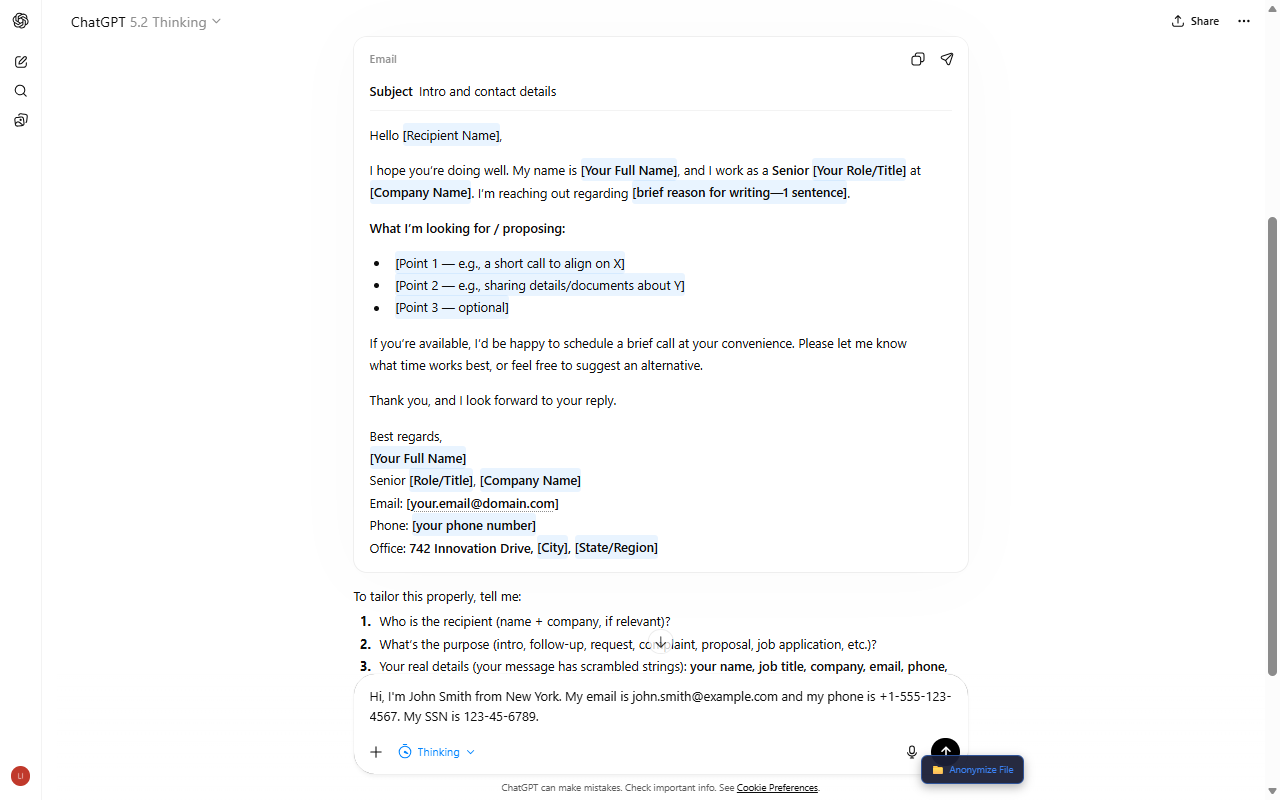 English Text Typed
Example text:
Hi, I'm John Smith from New York. My email is john.smith@example.com
and my phone is +1-555-123-4567. My SSN is 123-45-6789.
Step 2: Preview Detected Entities#
Click Send. The extension intercepts the message and shows the preview modal:
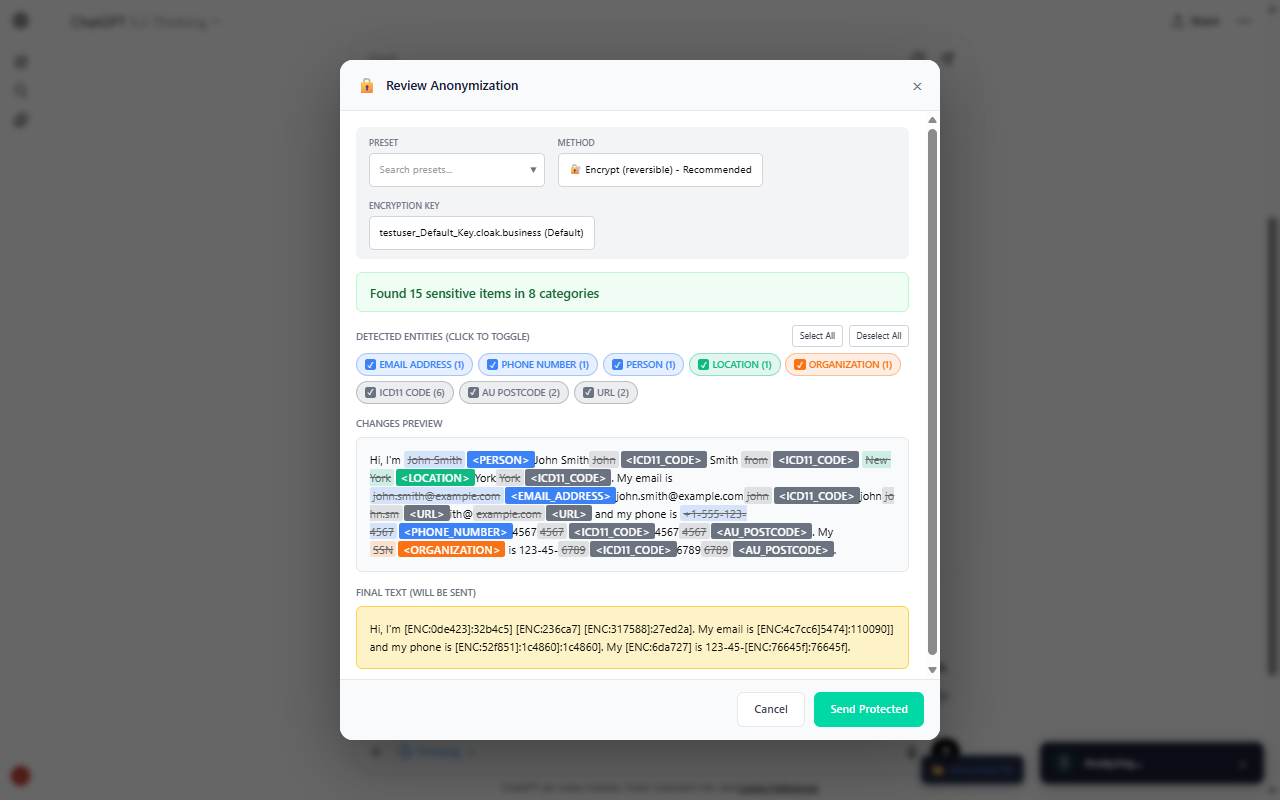 English Preview Modal
The preview modal displays:
- Original text with highlighted entities
- Entity badges showing detected PII types
- Anonymization method selector (Encrypt, Mask, Redact, Replace, Hash)
- Preset selector to switch regions
Step 3: Review Entity Details#
Each detected entity is color-coded by type:
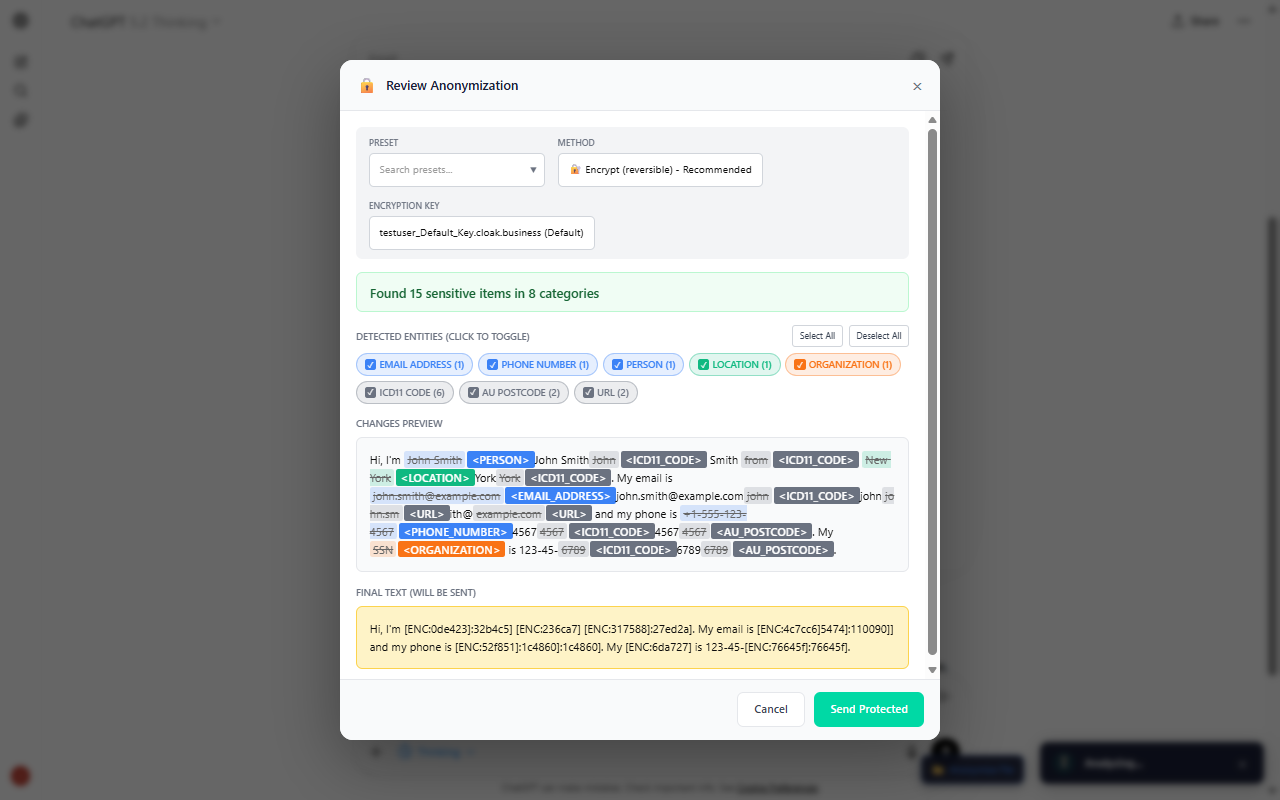 English Entities Detail
| Entity Type | Color | Example |
|---|---|---|
| PERSON | Blue | John Smith |
| EMAIL_ADDRESS | Purple | john.smith@example.com |
| PHONE_NUMBER | Green | +1-555-123-4567 |
| US_SSN | Red | 123-45-6789 |
| LOCATION | Orange | New York |
You can:
- Click checkboxes to include/exclude specific entities
- Hover to see the detected value
- Choose anonymization method per entity type
Step 4: Send Protected#
Click Send Protected to anonymize and send your message:
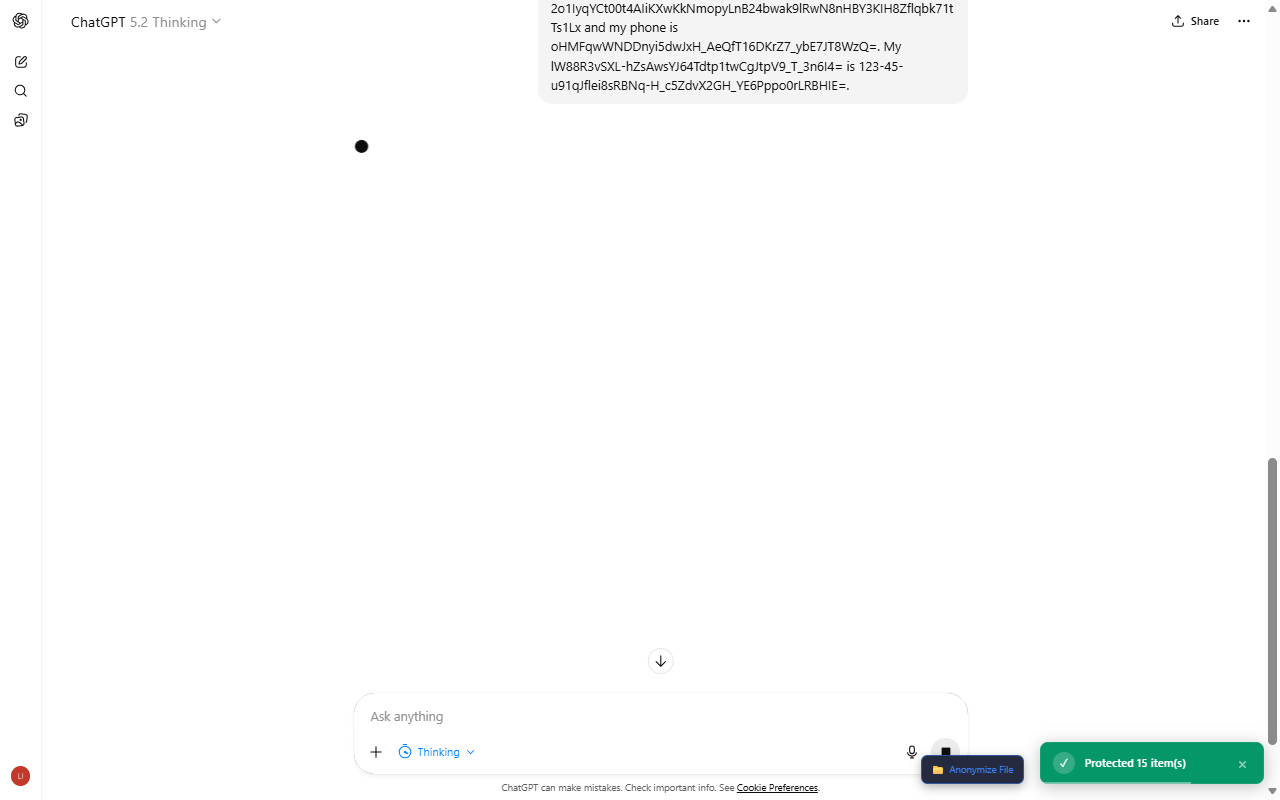 English Sending
The extension encrypts all detected entities and sends the protected message.
Step 5: View Anonymized Message#
The anonymized message appears in the chat:
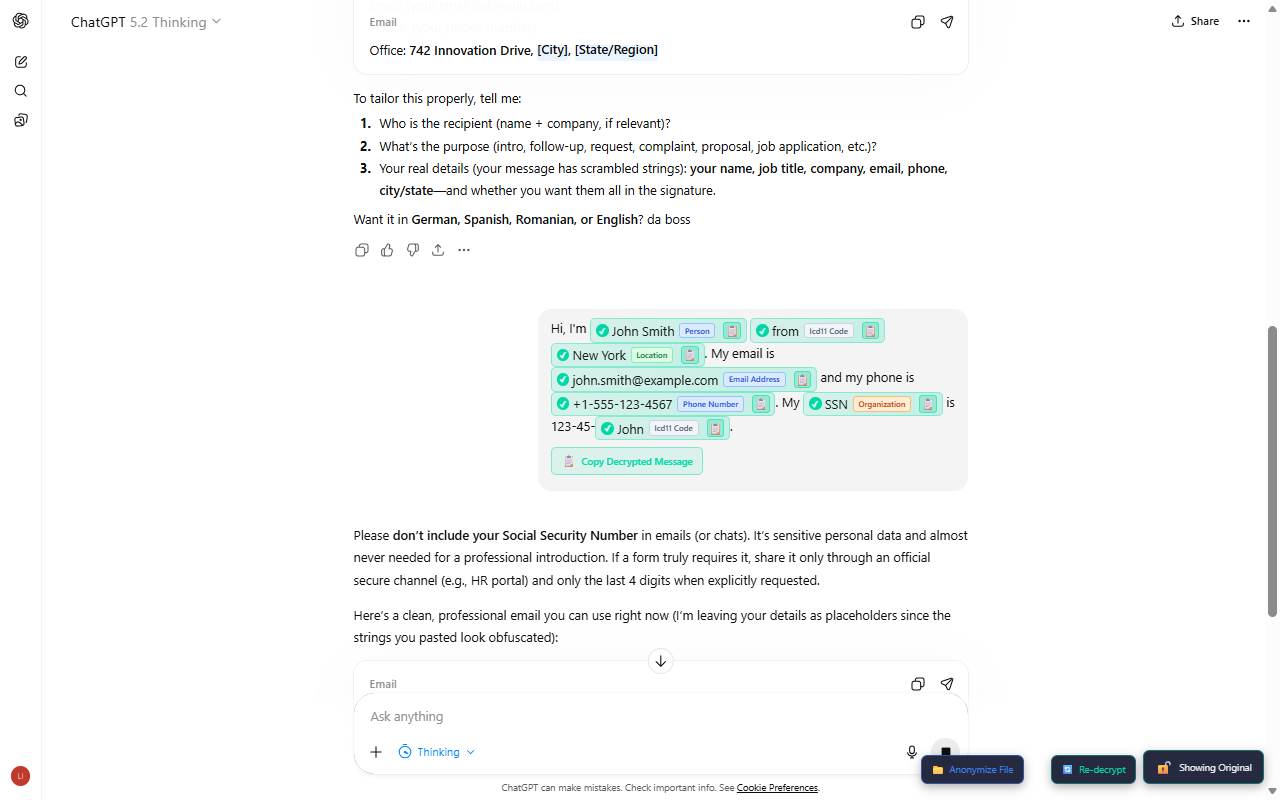 English Anonymized Sent
Your PII has been replaced with encrypted tokens that the AI cannot understand. The original values are securely encrypted using AES-256.
Step 6: AI Response with De-anonymization#
When the AI responds, encrypted values are automatically decrypted and highlighted in green:
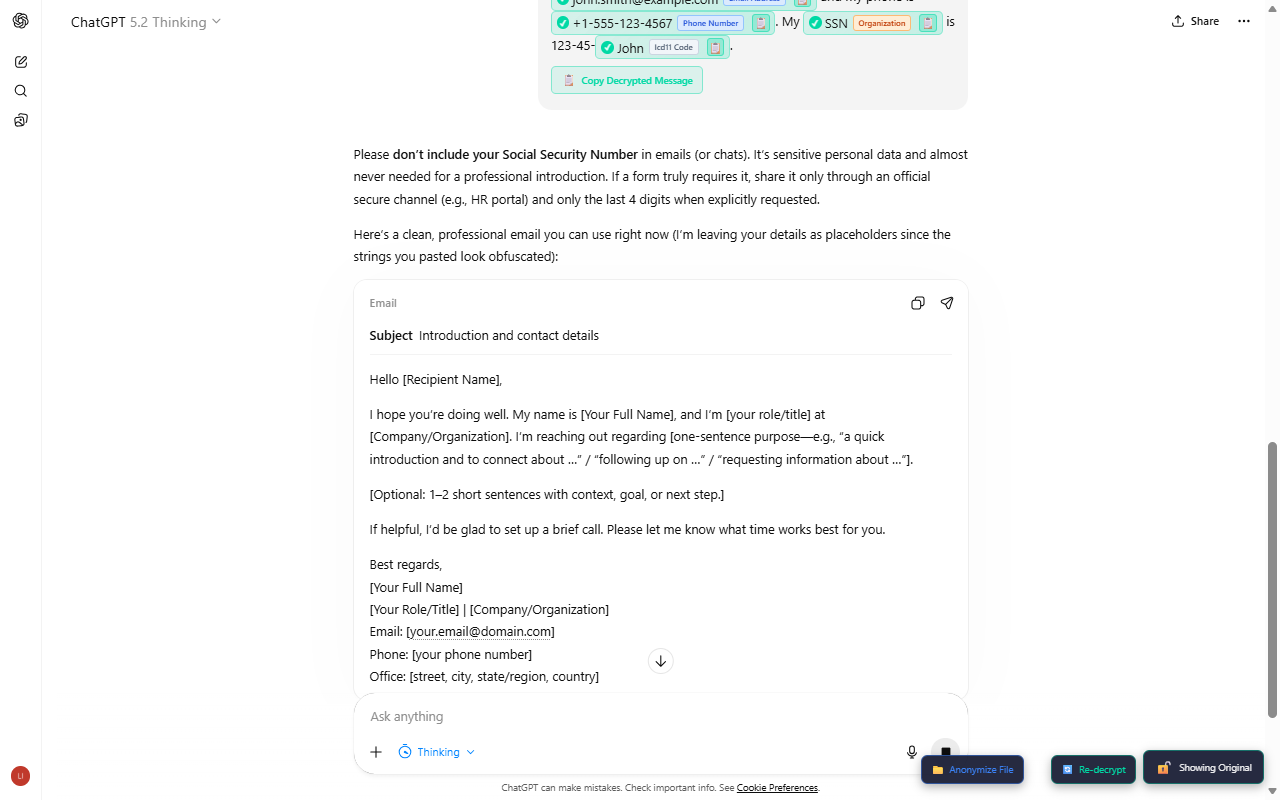 English AI Response
You see the original values while the AI only processed encrypted tokens. This is the magic of reversible encryption - you maintain full context while protecting your data.
Step 7: Toggle Encrypted View#
Click the toggle button to see what the AI actually received:
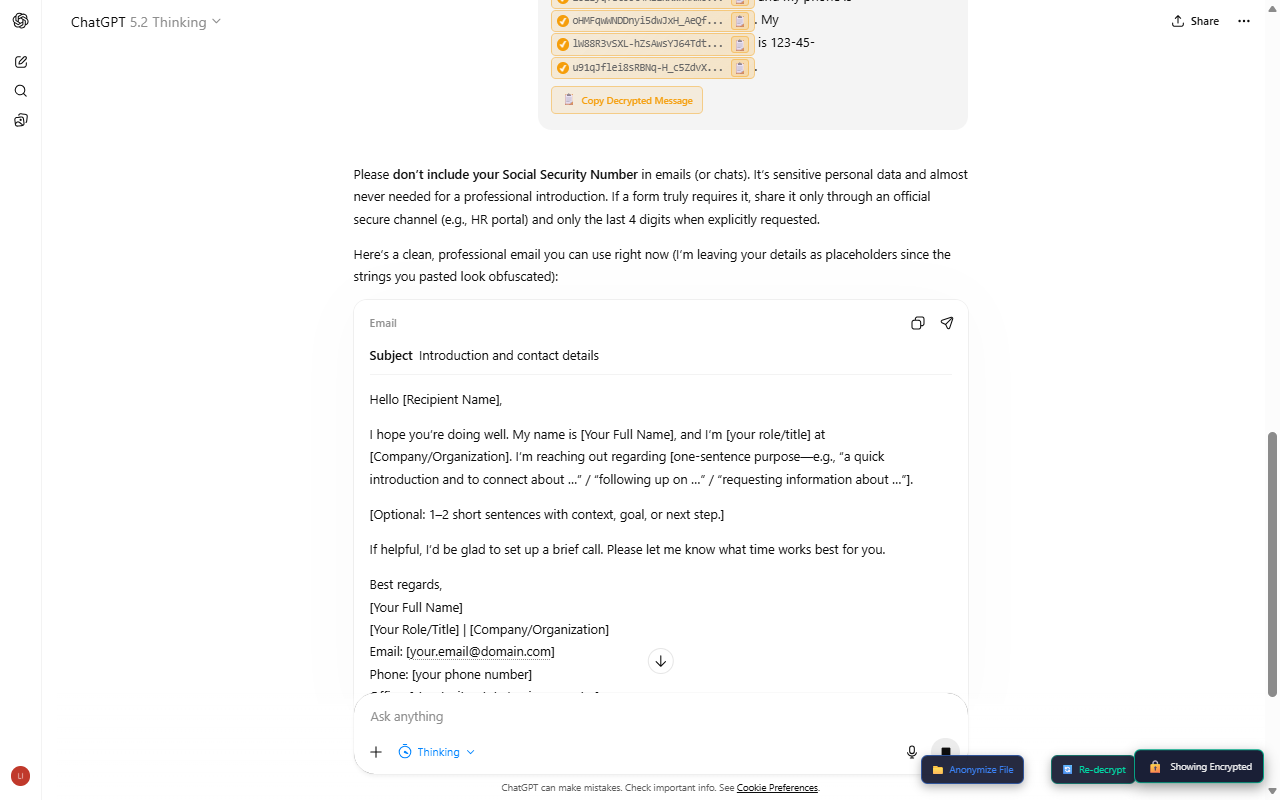 English Toggle Encrypted
This shows the encrypted base64 values that were sent to the AI. Toggle back to see your decrypted values again.
Multi-Language Support#
cloak.business supports 48 languages with country-specific entity recognition. Here are examples for major European languages.
Spanish (España)#
Select the España preset for Spanish PII detection:
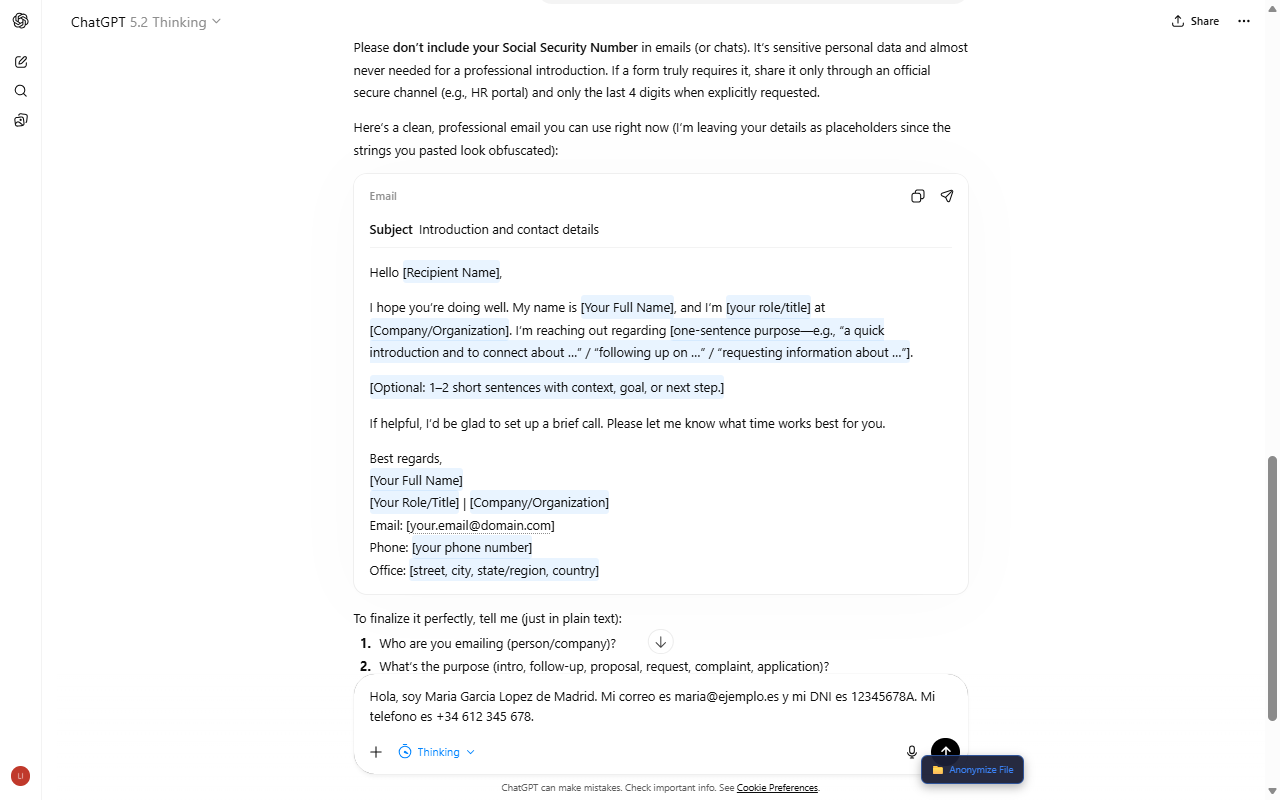 Spanish Text Typed
Example text:
Hola, soy María García López de Madrid. Mi correo es maria@ejemplo.es
y mi DNI es 12345678A. Mi teléfono es +34 612 345 678.
The preview modal detects Spanish-specific entities like ES_DNI (Spanish ID number):
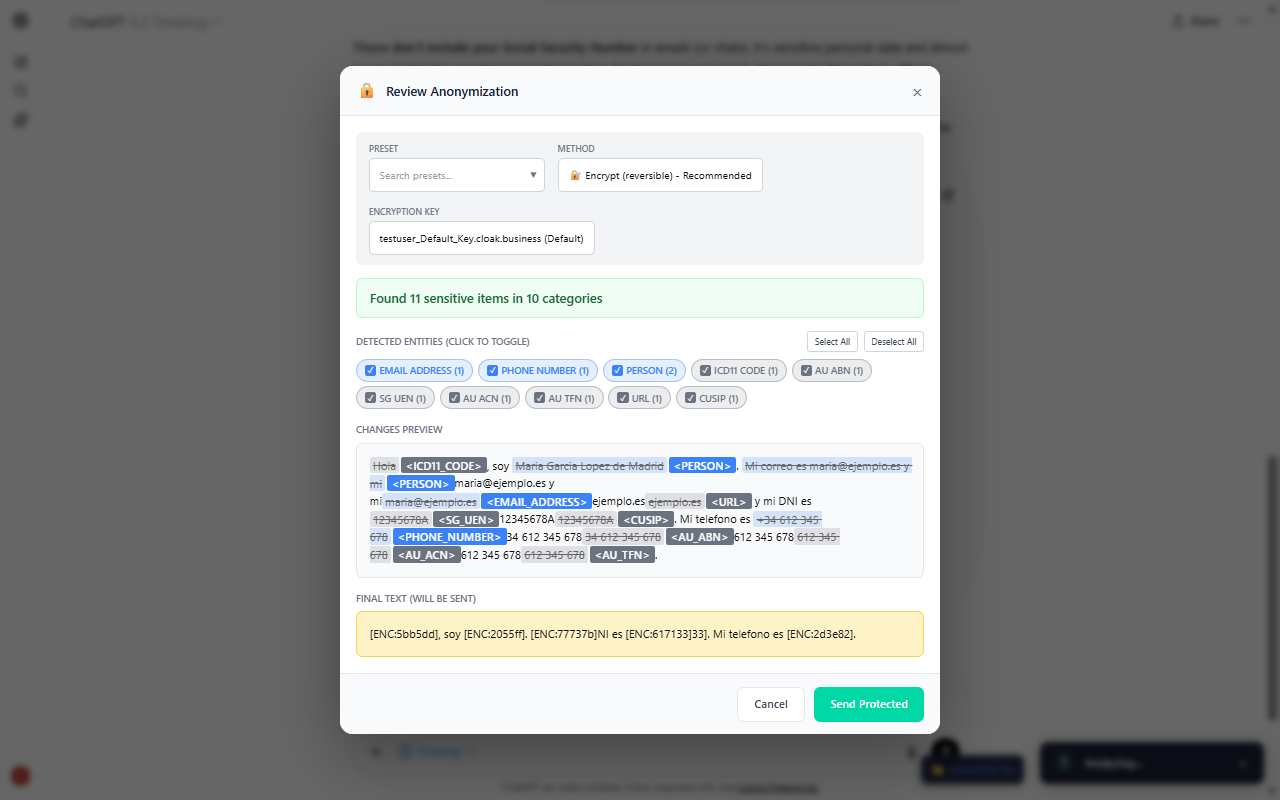 Spanish Preview Modal
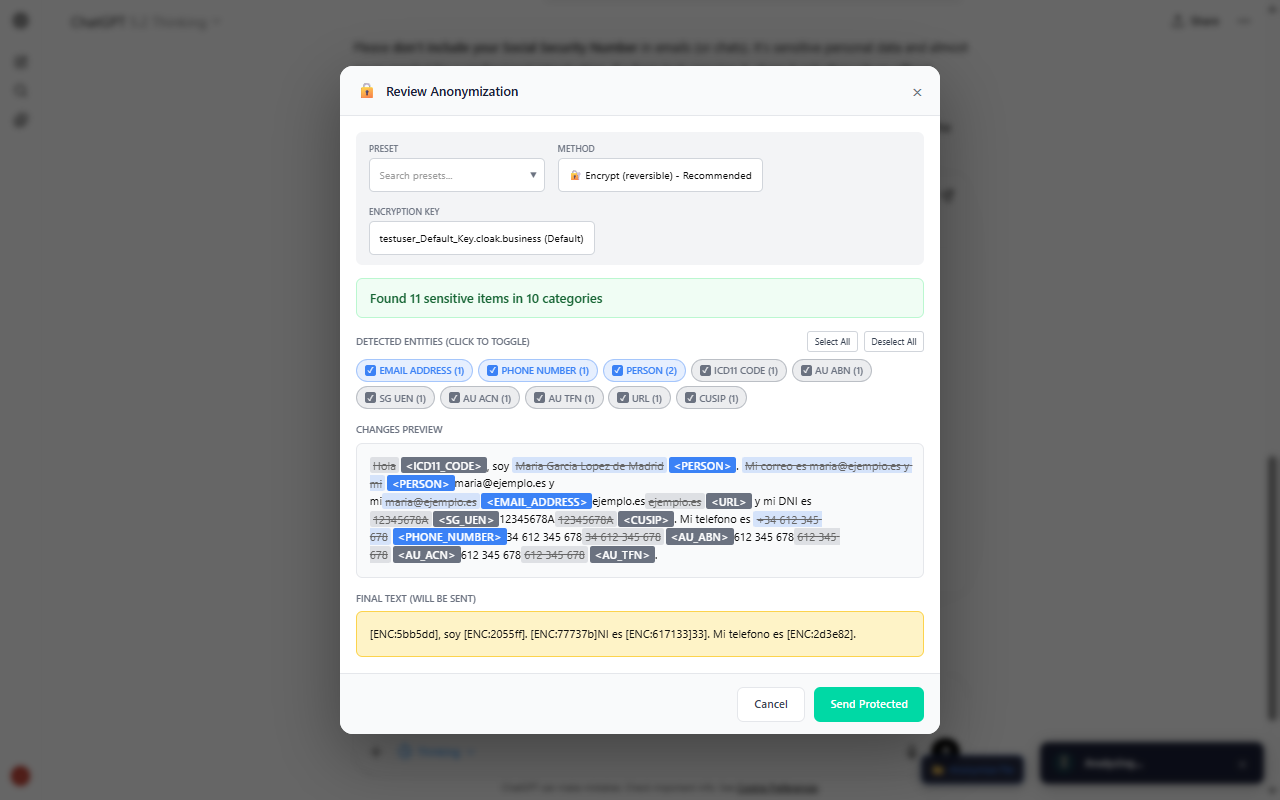 Spanish Entities Detail
After sending, view the anonymized message:
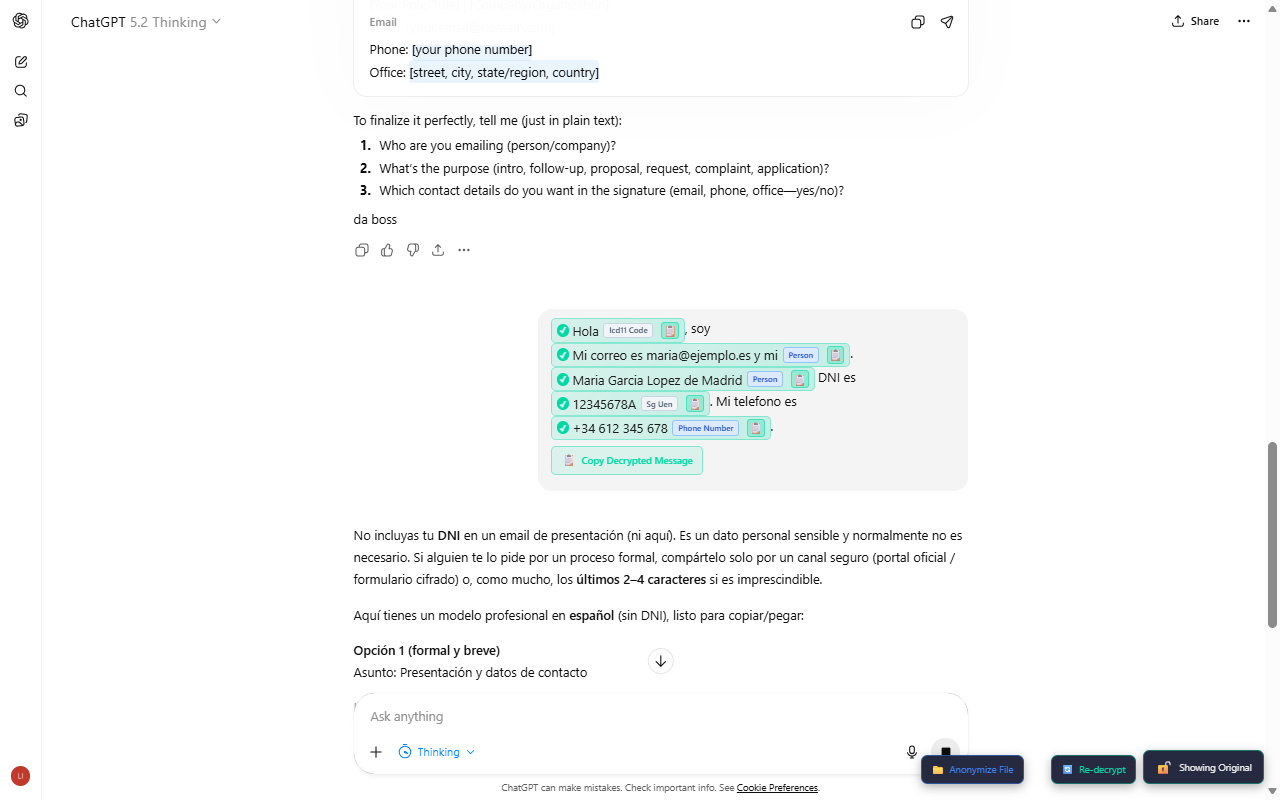 Spanish Anonymized Sent
And the AI response with decrypted Spanish values:
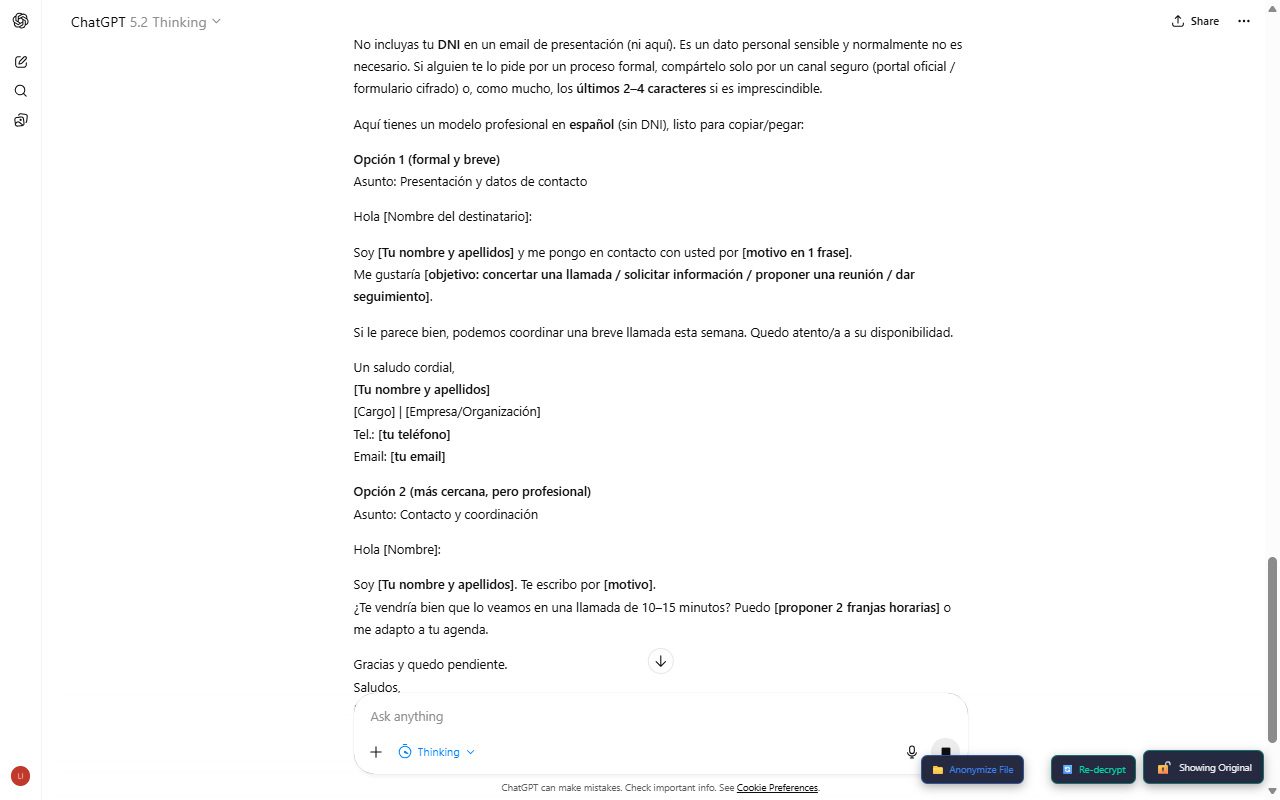 Spanish AI Response
Toggle to see encrypted view:
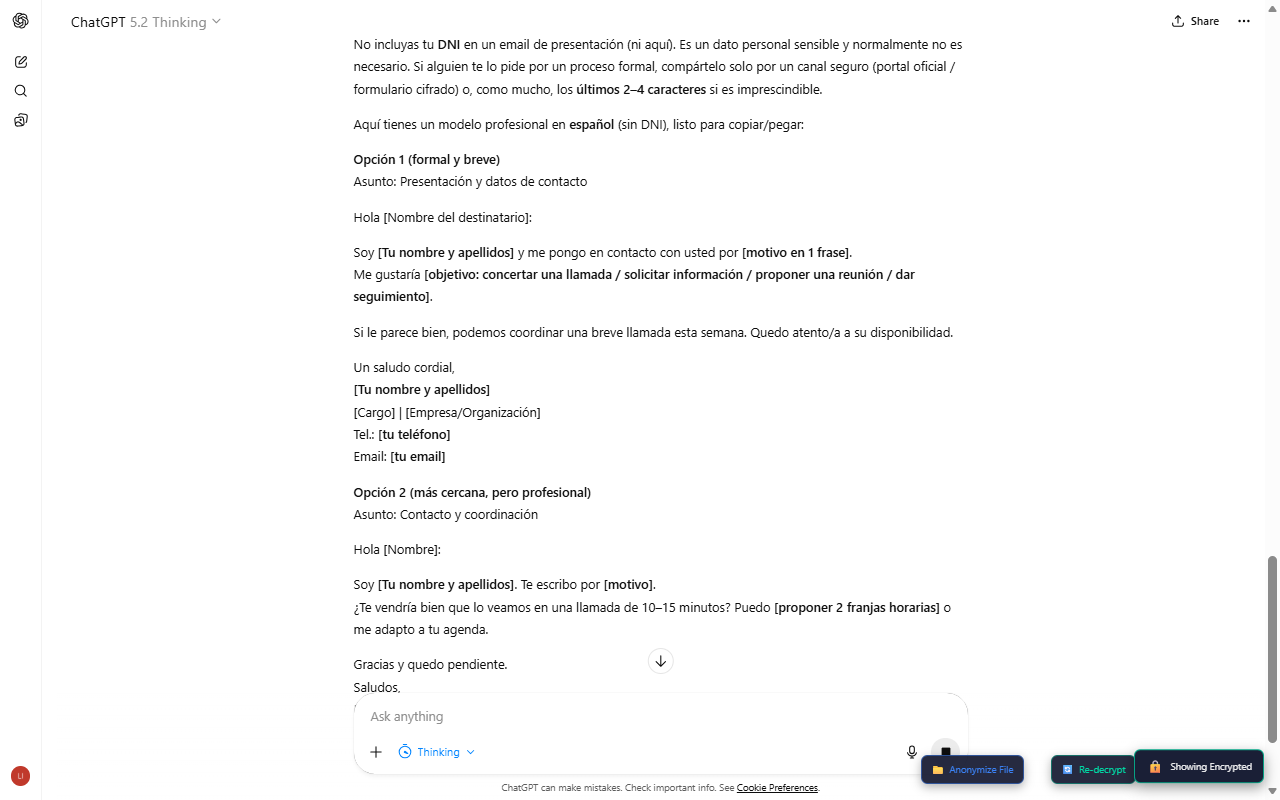 Spanish Toggle Encrypted
French (France)#
Select the France preset for French PII detection:
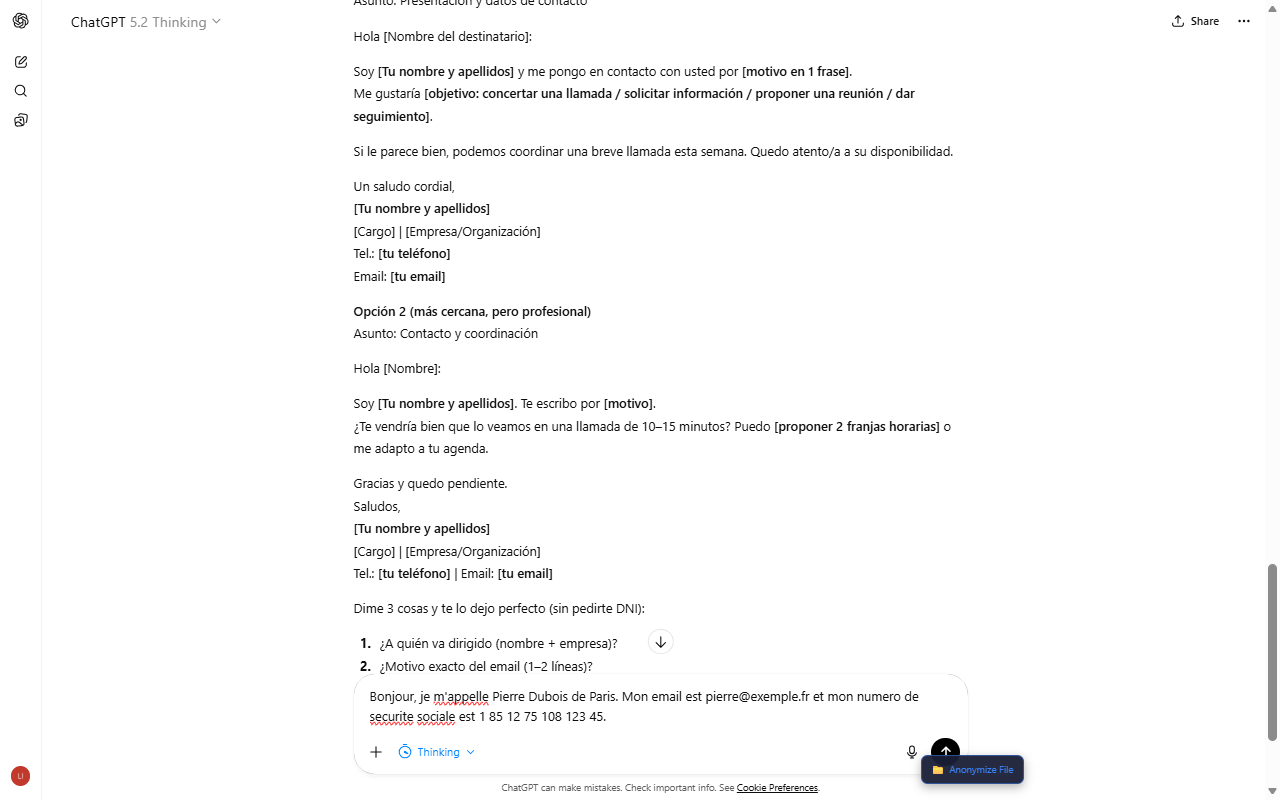 French Text Typed
Example text:
Bonjour, je m'appelle Pierre Dubois de Paris. Mon email est pierre@exemple.fr
et mon numéro de sécurité sociale est 1 85 12 75 108 123 45.
The preview detects FR_SSN (French Social Security Number):
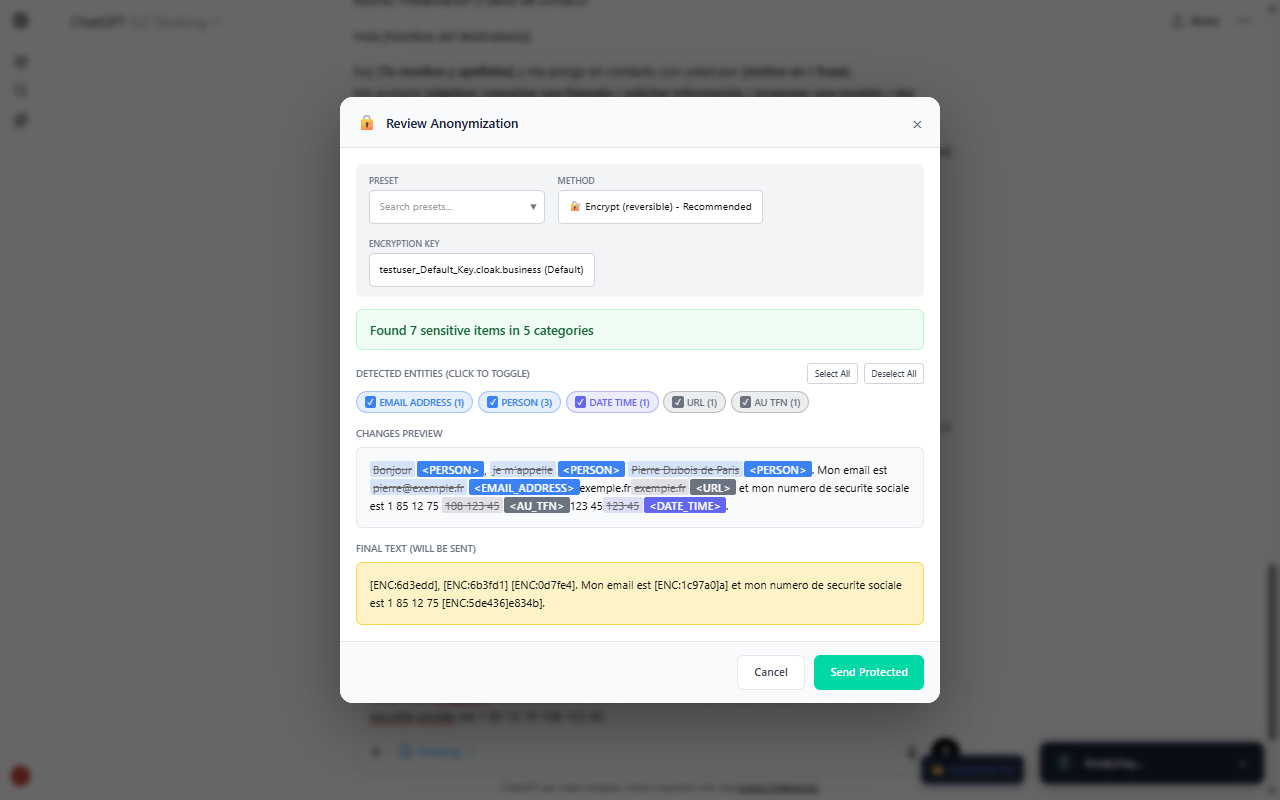 French Preview Modal
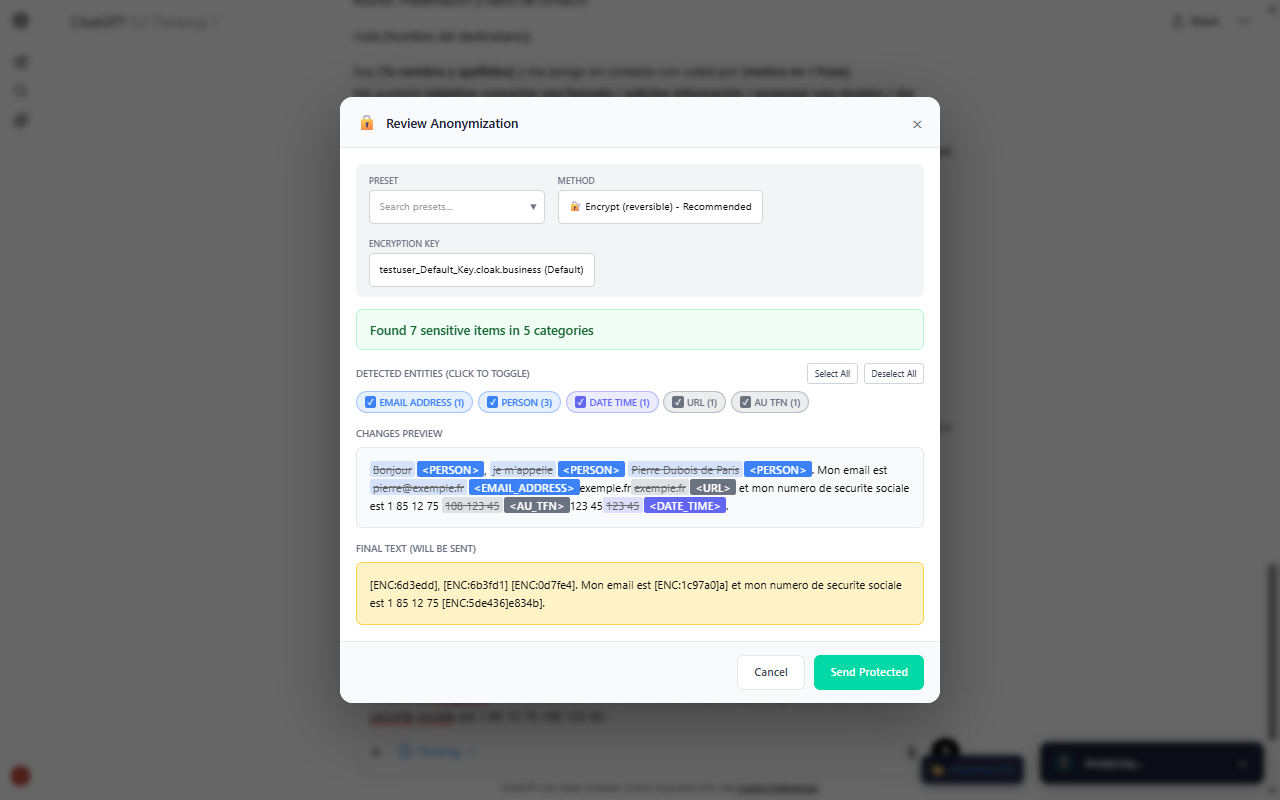 French Entities Detail
After sending:
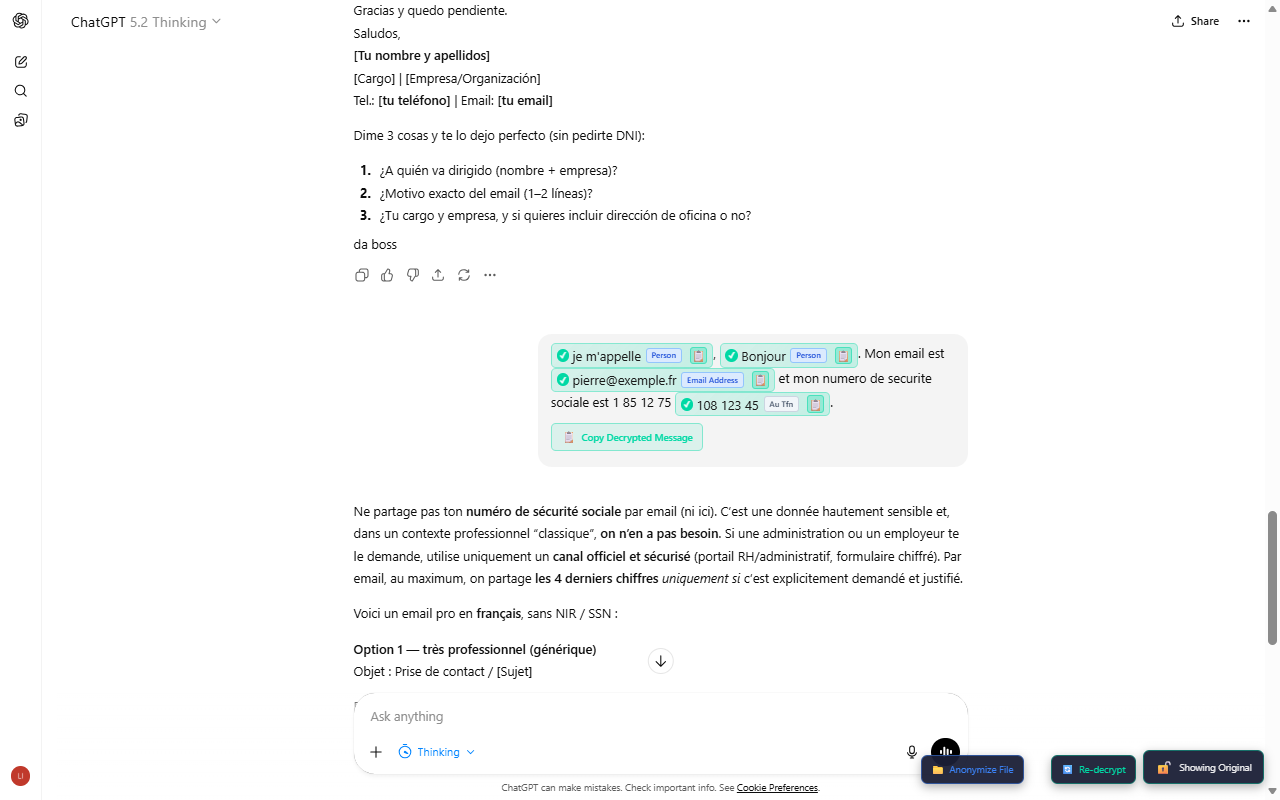 French Anonymized Sent
AI response with decrypted French data:
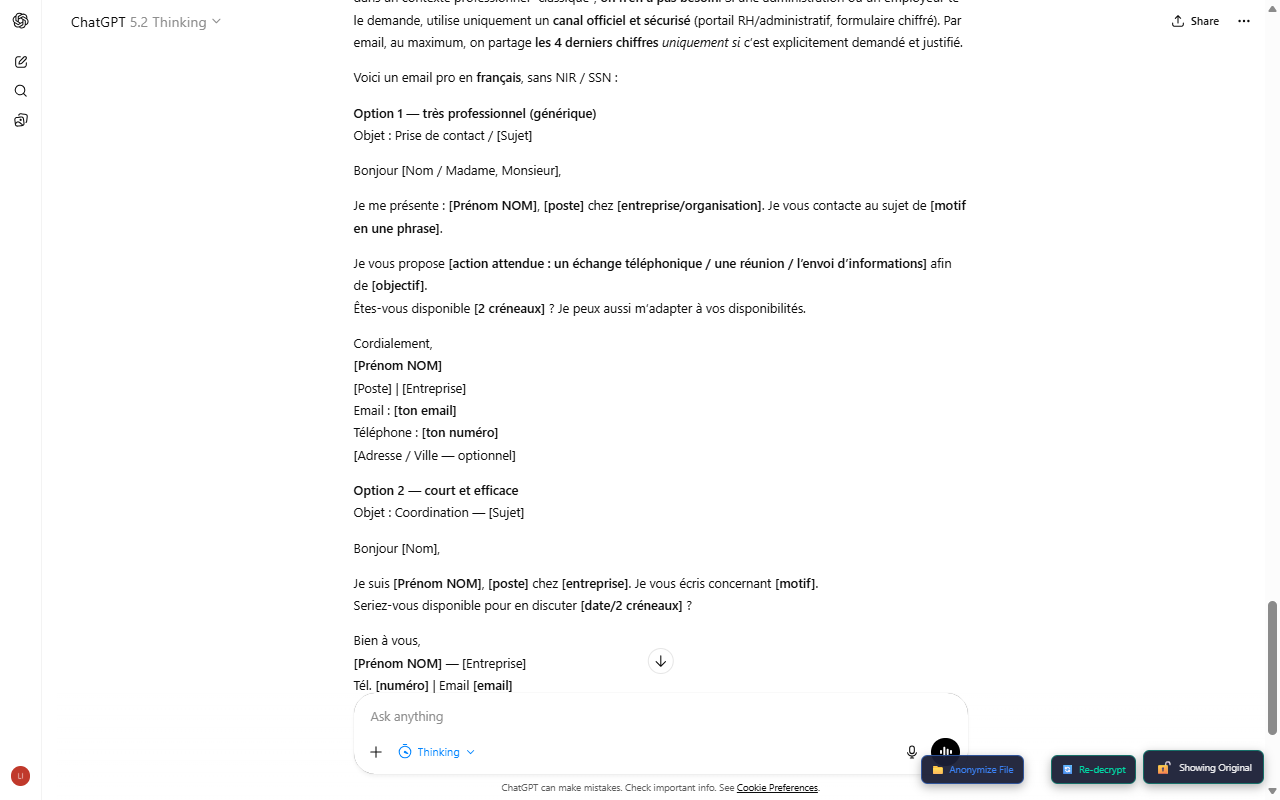 French AI Response
Toggle encrypted view:
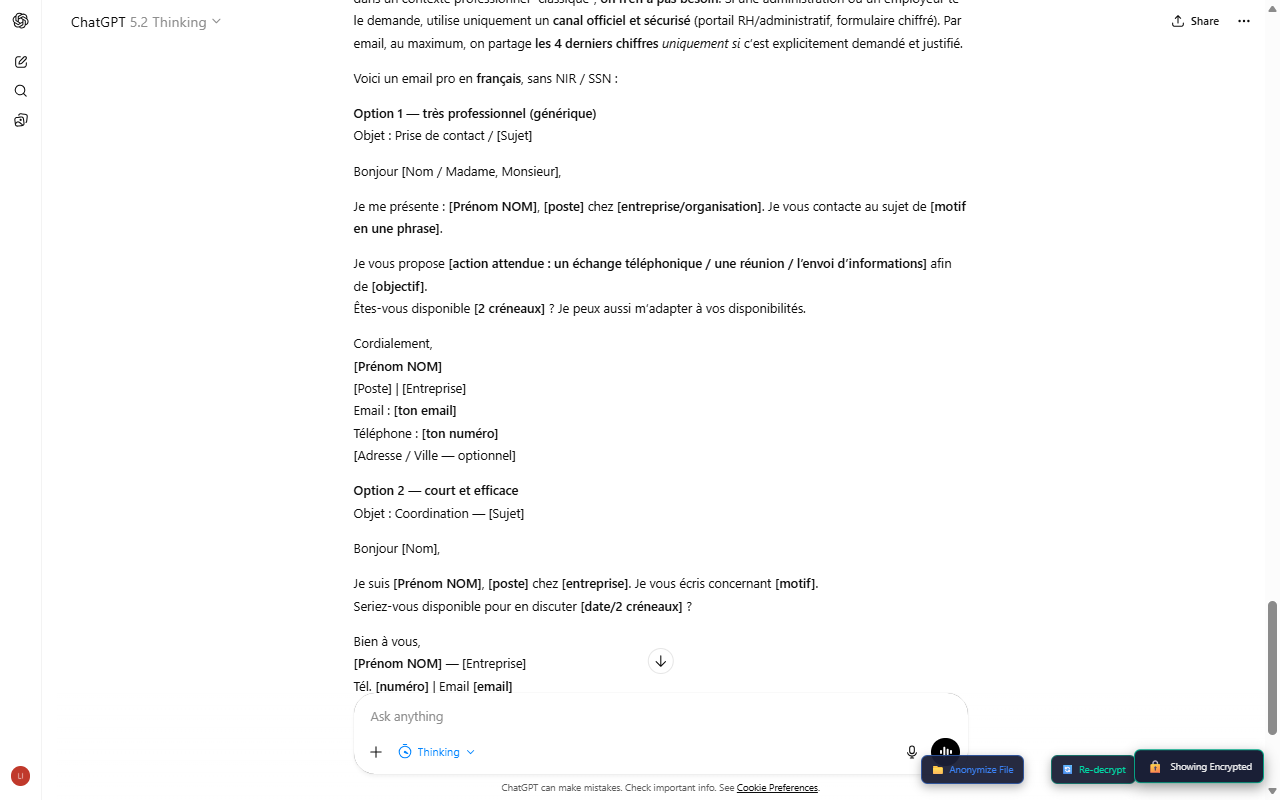 French Toggle Encrypted
German (Deutschland)#
Select the Deutschland preset for German PII detection:
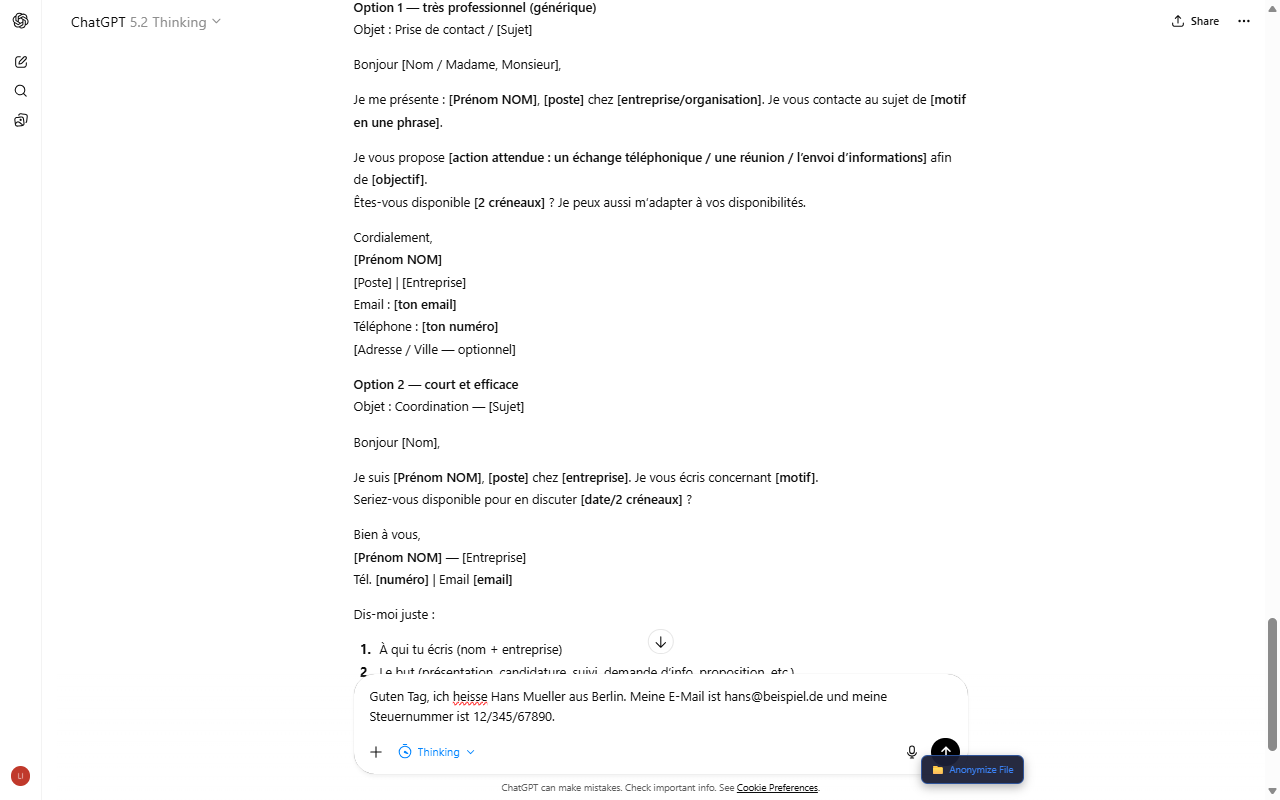 German Text Typed
Example text:
Guten Tag, ich heiße Hans Müller aus Berlin. Meine E-Mail ist hans@beispiel.de
und meine Steuernummer ist 12/345/67890.
The preview detects DE_TAX_ID (German Tax ID):
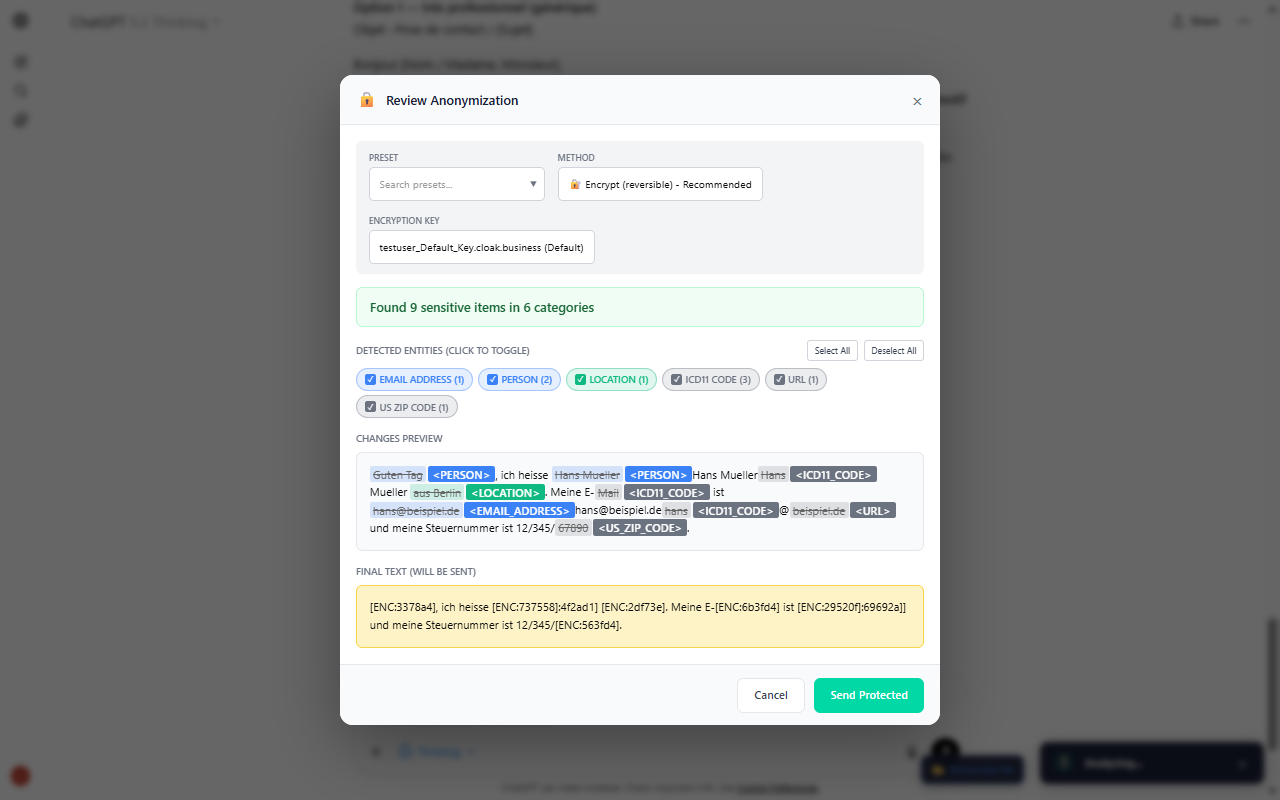 German Preview Modal
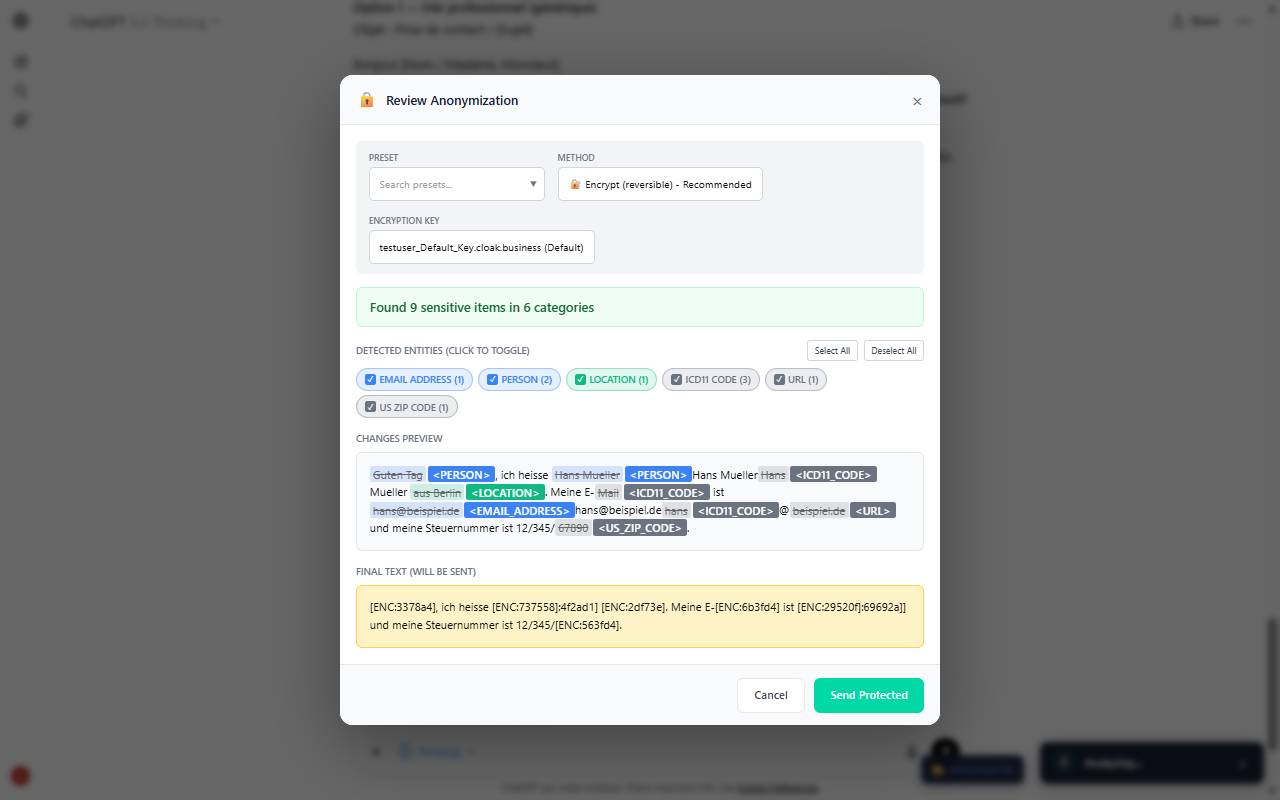 German Entities Detail
After sending:
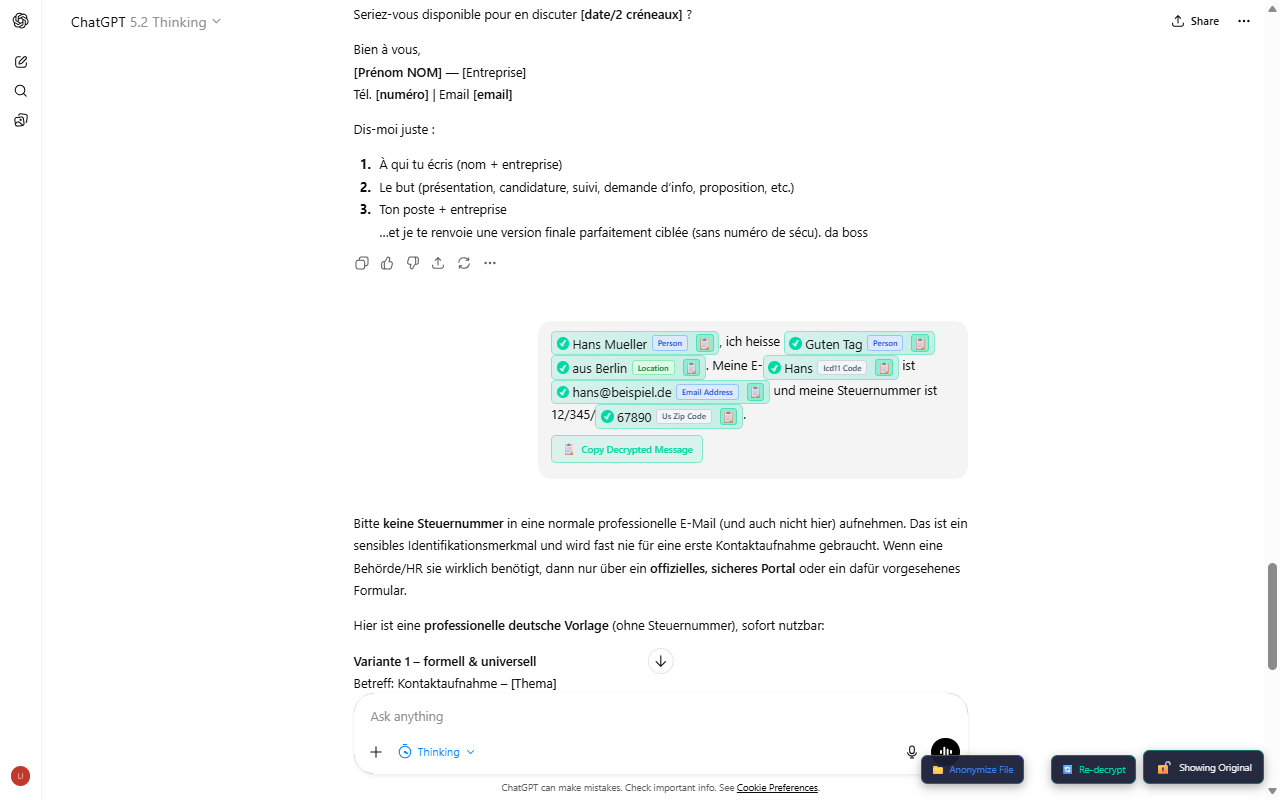 German Anonymized Sent
AI response with decrypted German data:
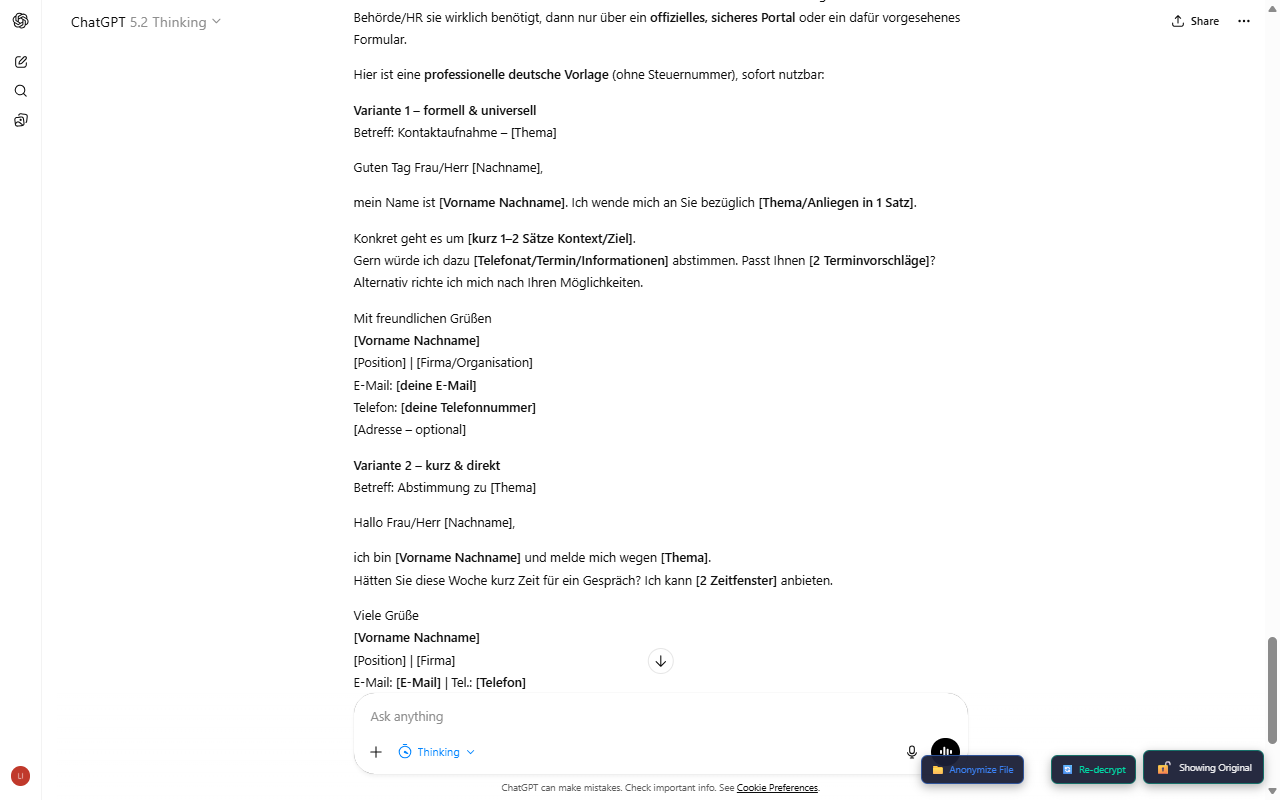 German AI Response
Toggle encrypted view:
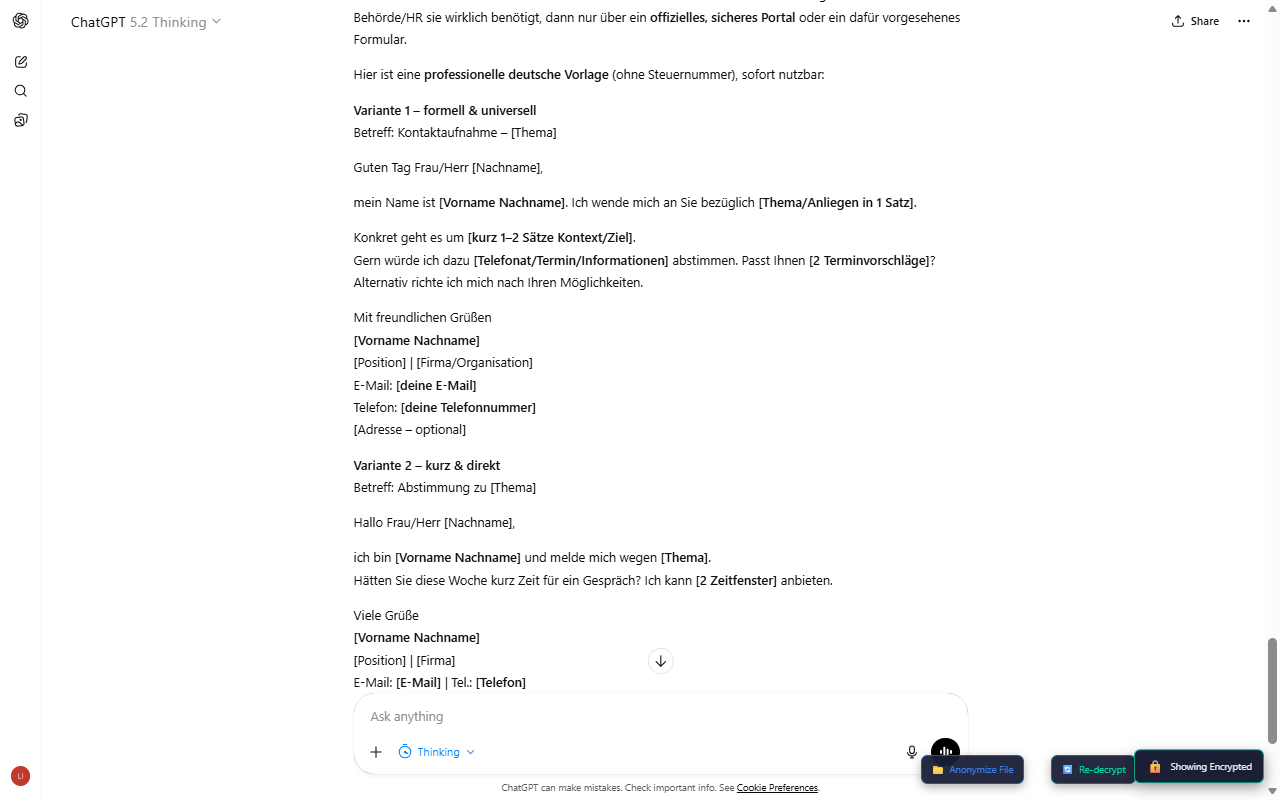 German Toggle Encrypted
Preset Browser#
Search Presets#
Use the search box in the preview modal to find presets by name:
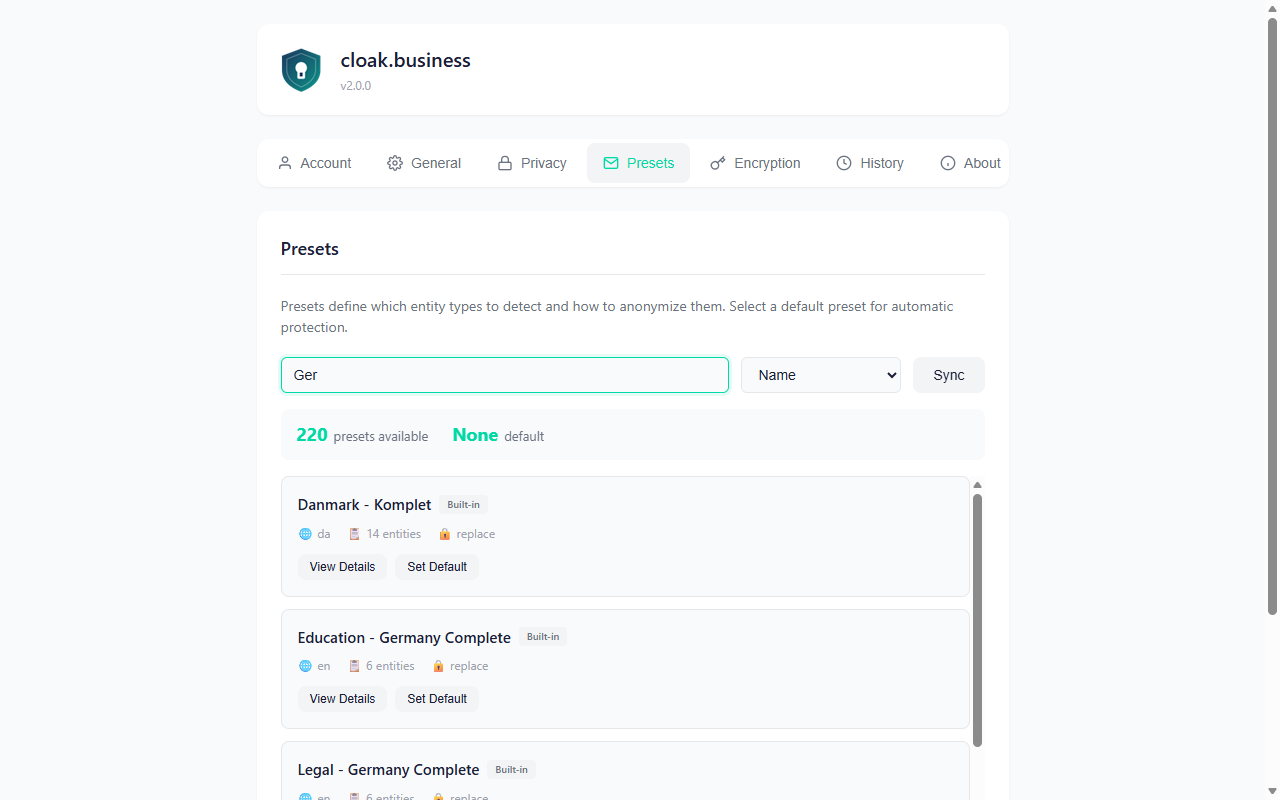 Preset Search
Type any country name (in English or native language) to filter results.
Browse 85+ Countries#
Scroll through the preset list to see all available countries with native names:
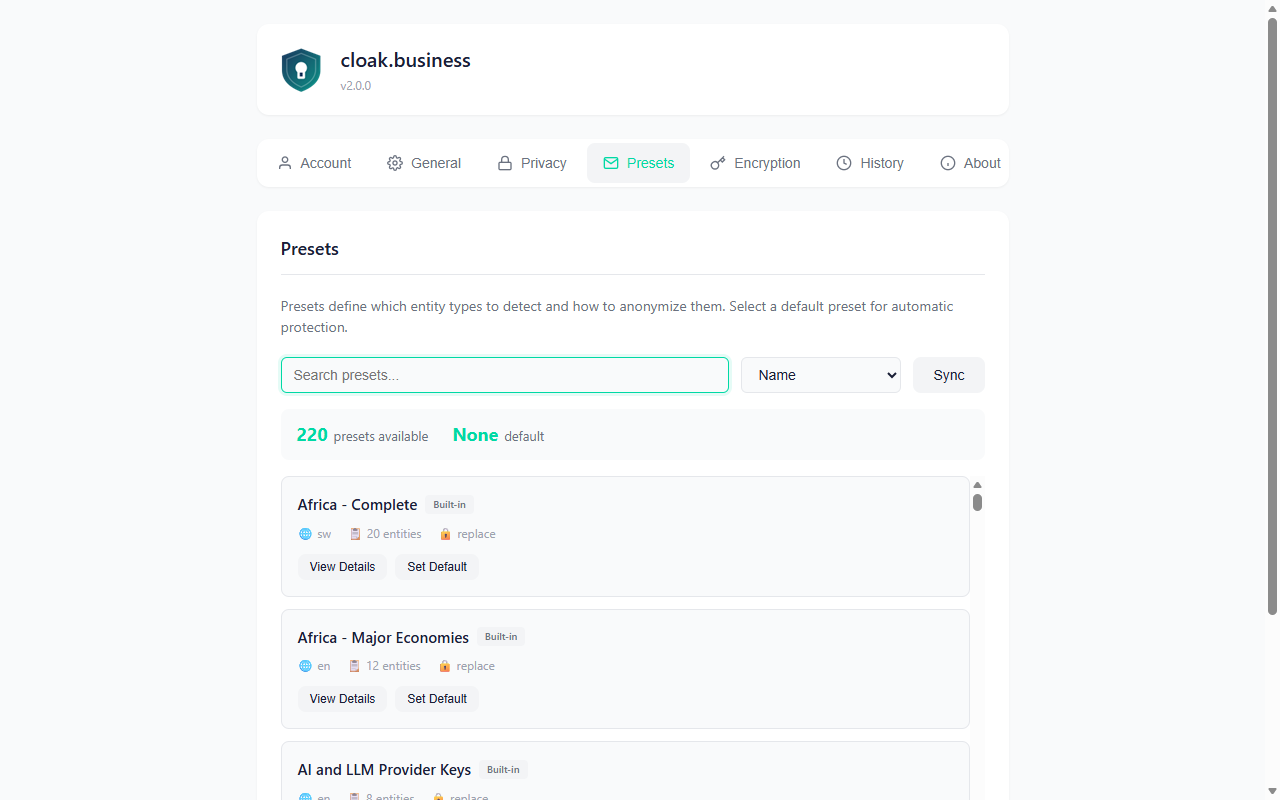 Preset Countries Scroll
Available presets include:
- Europe: España, France, Italia, Deutschland, Nederland, Polska, Sverige, Norge, Danmark, Ellada (Greece), Portugal, România
- Americas: United States, Canada, Brasil, México, Argentina
- Asia-Pacific: Nihon (Japan), Zhōngguó (China), Bhārat (India), 한국 (Korea), Australia
- Middle East: العربية السعودية (Saudi Arabia), ישראל (Israel), Türkiye
- Industry: Healthcare (HIPAA), Developer Secrets, Financial Services
Preset Details#
Click View Details on any preset to see the full entity list:
- Entity type name
- Pattern description
- Detection confidence
- Example values
Settings & Options#
Access the full options page by clicking the gear icon in the extension popup.
Account Tab#
View your account information and token balance:
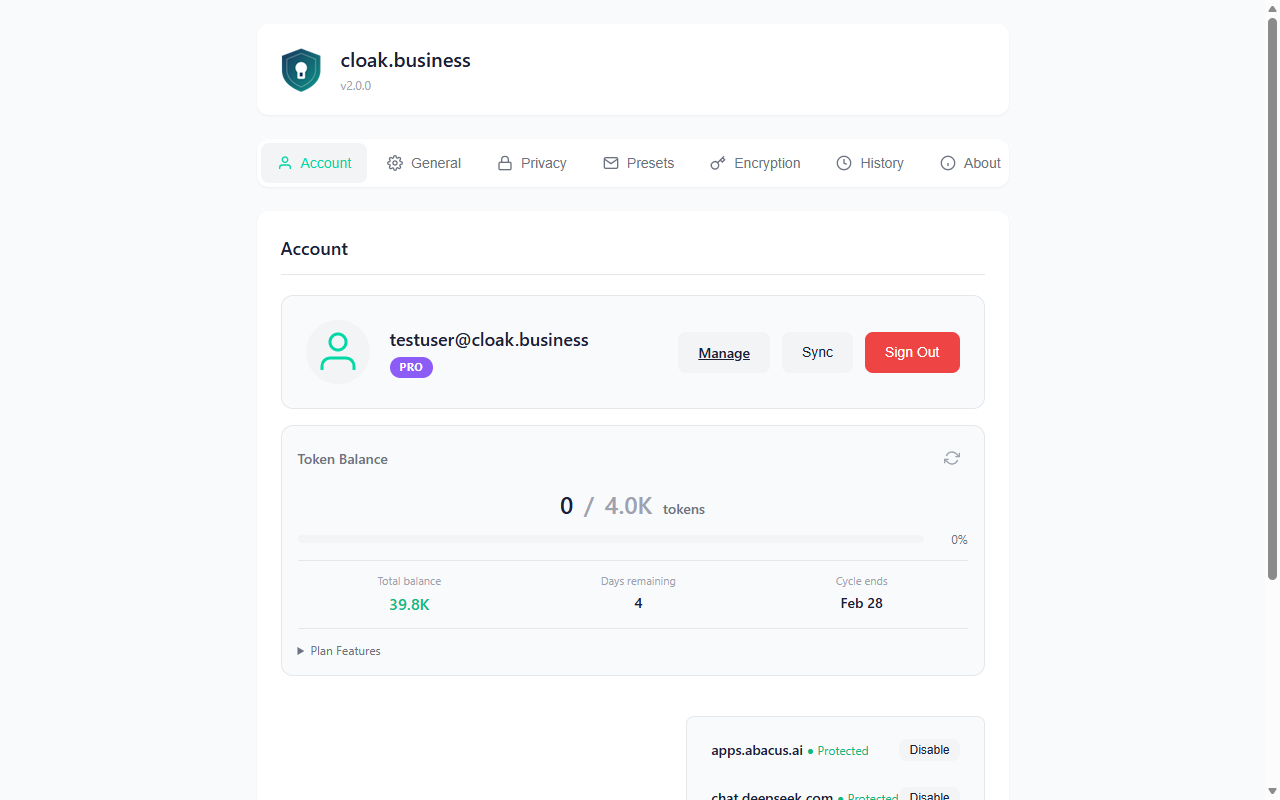 Options Account
The token display shows:
- Available balance prominently displayed
- Used this cycle as secondary information
General Settings#
Configure theme, preview behavior, and fail mode:
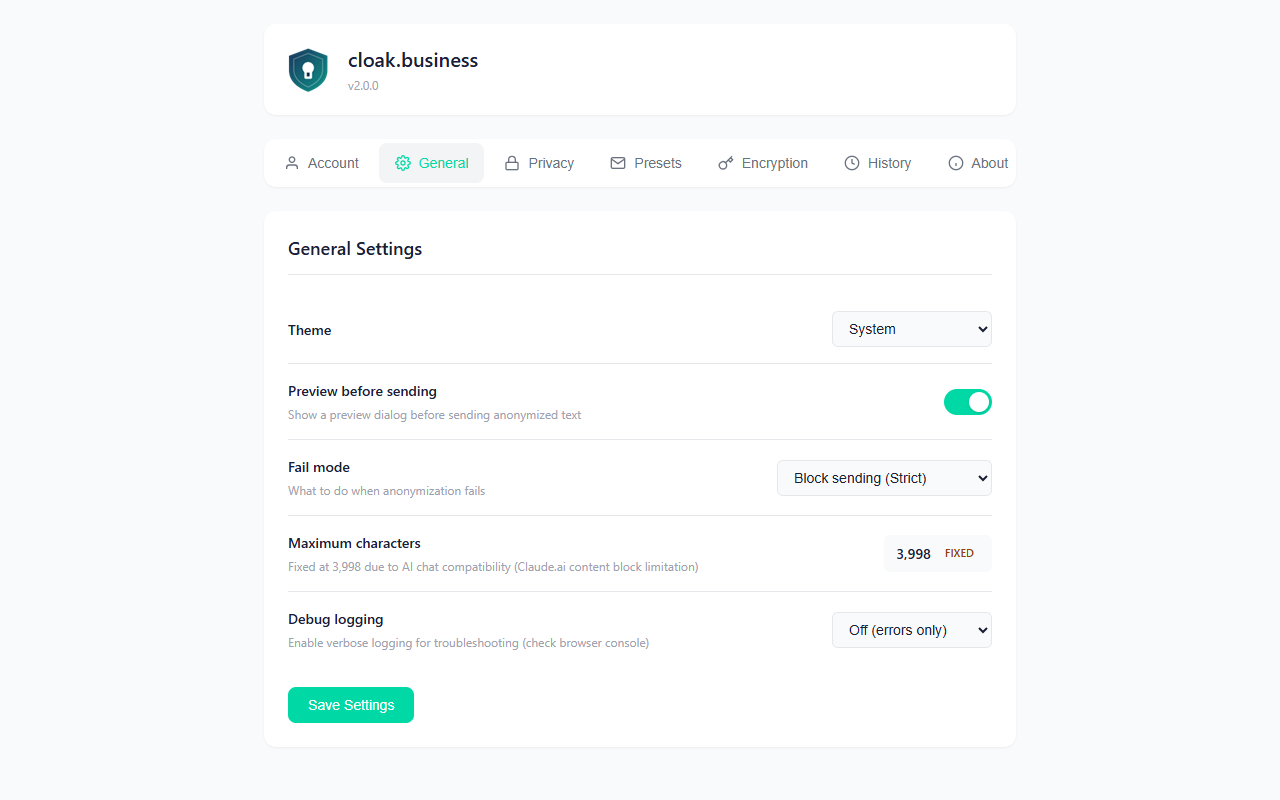 Options General
| Setting | Description |
|---|---|
| Theme | Light, Dark, or System |
| Show Preview | Always show preview modal before sending |
| Fail Mode | What to do if anonymization fails (Block, Warn, Allow) |
| Debug Logging | Enable verbose logging for troubleshooting |
Privacy Settings#
Control data storage and retention:
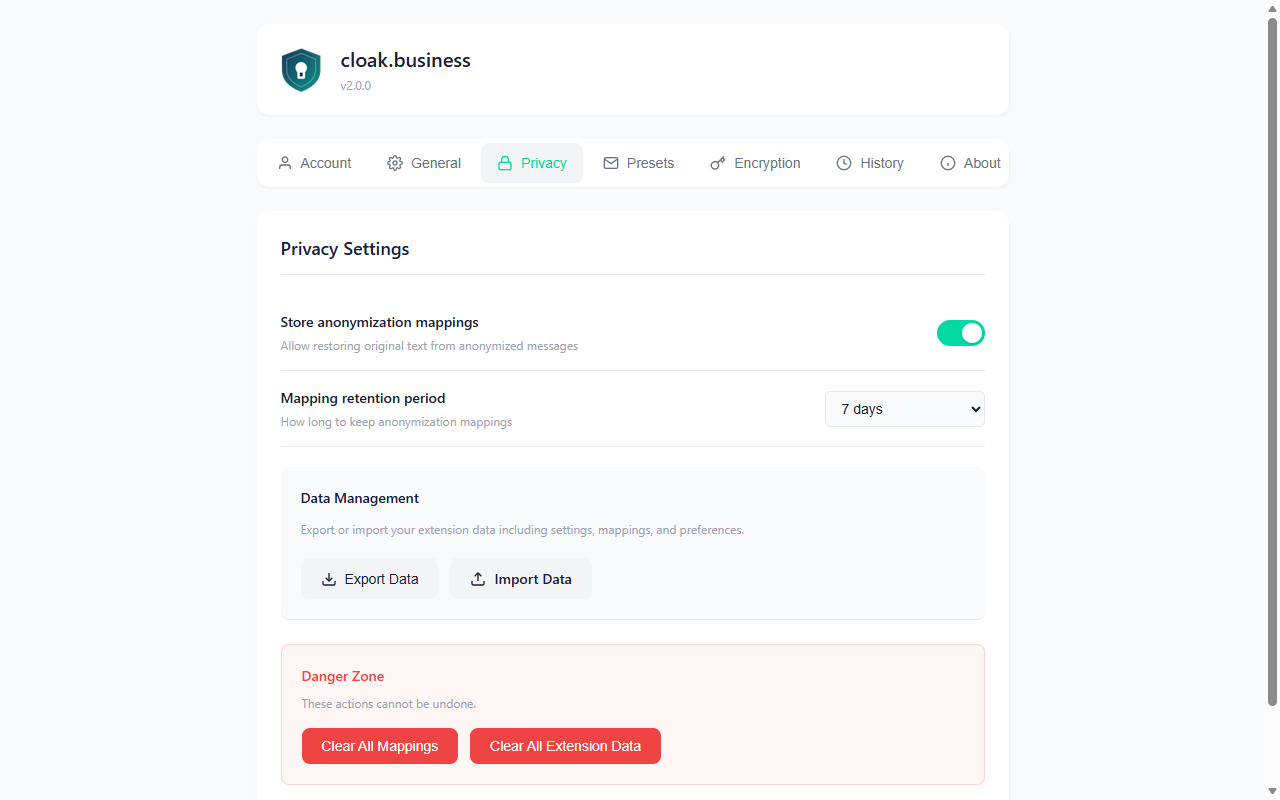 Options Privacy
| Setting | Description |
|---|---|
| Mapping Storage | Where to store encryption mappings (Local, Server, or Hybrid) |
| TTL | How long to keep mappings (for de-anonymization) |
| Clear Data | Delete all stored mappings |
Encryption Keys#
Manage your encryption keys:
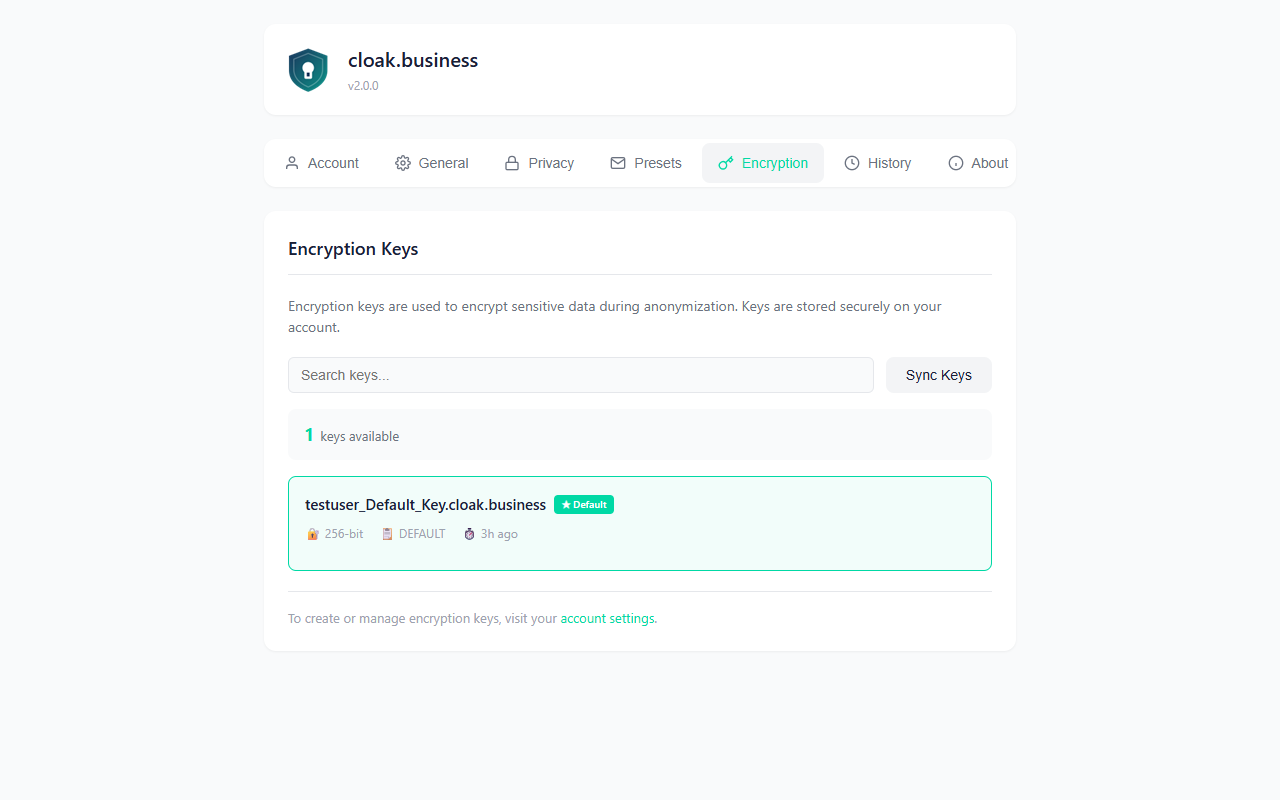 Options Encryption
You can:
- View available keys synced from your account
- Set default key for new sessions
- Create new keys (on cloak.business website)
History#
View past anonymization sessions:
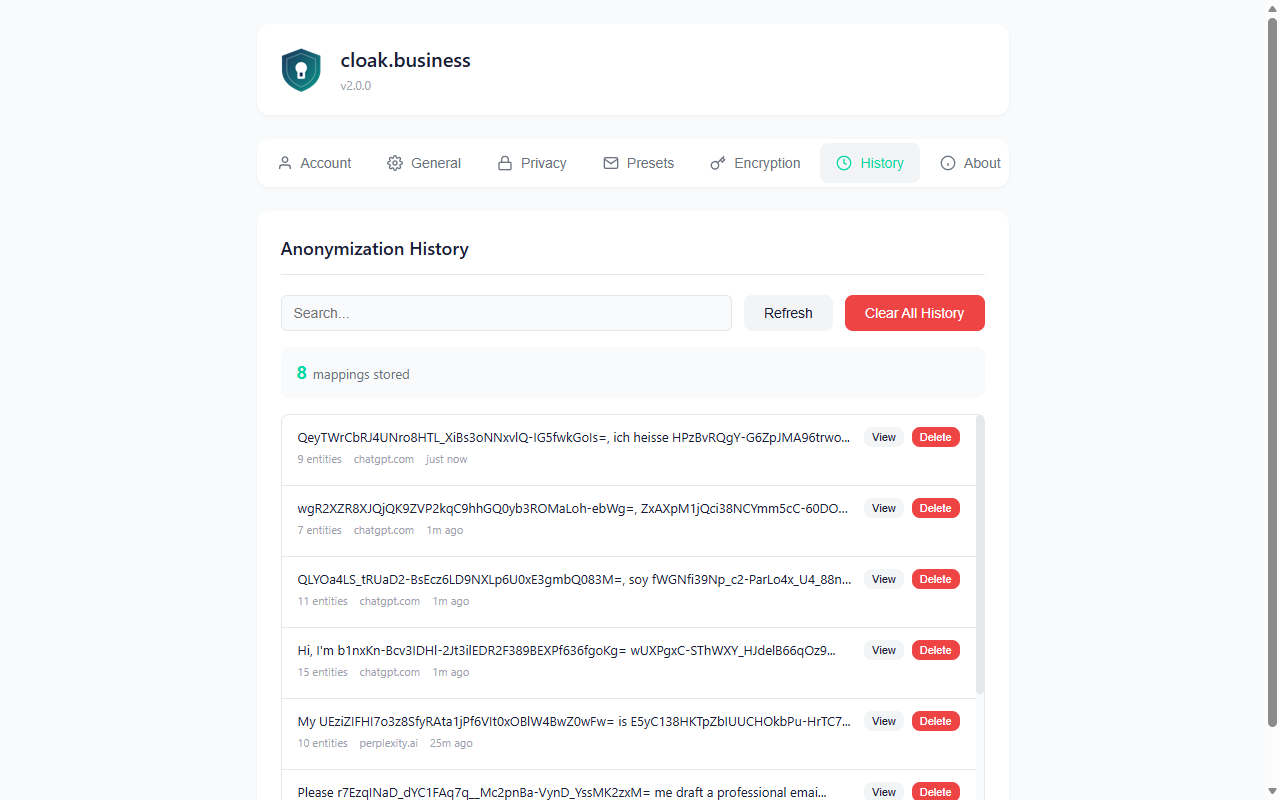 Options History
Each history item shows:
- Timestamp
- Platform (ChatGPT, Claude, etc.)
- Number of entities detected
- Anonymization method used
Click any item to see full details including original and anonymized text.
Supported AI Services#
| Service | URL | Status |
|---|---|---|
| ChatGPT | chatgpt.com, chat.openai.com | Fully supported |
| Claude | claude.ai | Fully supported |
| Gemini | gemini.google.com | Fully supported |
| DeepSeek | chat.deepseek.com | Fully supported |
| Perplexity | perplexity.ai | Fully supported |
| Abacus.ai | chatllm.abacus.ai | Fully supported |
Character Limit: 3,998 characters per message
Why the limit? Claude.ai converts longer text into "content blocks" which cannot be anonymized. This limit ensures consistent protection across all platforms.
Anonymization Methods#
| Method | Description | Reversible | Example |
|---|---|---|---|
| Encrypt | AES-256 encryption | Yes | LzqYf_zJ... |
| Replace | Substitute with type label | No | <PERSON> |
| Redact | Remove entirely | No | (empty) |
| Hash | SHA-256 hash | No | 3c4a7b8d... |
| Mask | Partial obscuring | No | J*** D** |
Recommendation: Use Encrypt for most use cases. It's the only method that allows you to see original values in AI responses.
Troubleshooting#
Common Issues#
| Problem | Solution |
|---|---|
| Extension not working | Refresh the page after enabling protection |
| "Unauthorized" error | Check API key in settings |
| Preview not appearing | Ensure protection is enabled for this site |
| No entities detected | Check preset matches content language |
| Decryption not working | Verify encryption key is correct |
| AI says "I can't read that" | Encrypted values are working - AI only sees tokens |
Debug Mode#
Enable debug logging for troubleshooting:
- Go to Options > General Settings
- Set Debug logging to Debug
- Open browser console (F12 > Console)
- Reproduce the issue
- Look for
[cloak.business]log entries
Console Commands#
// Enable debug output
window.__ANON_DEBUG__ = true;

// View buffered logs
window.__ANON_LOGS__

// Get connector stats
window.__ANON_STATS__()

// Inspect decryption cache
window.__ANON_CACHE__()
Resetting the Extension#
If issues persist:
- Go to
chrome://extensions - Find cloak.business
- Click Remove
- Reinstall from Chrome Web Store
- Re-enter your API key
FAQ#
Is my data sent to cloak.business servers?#
Text only - your text is sent to cloak.business for PII detection and anonymization. The anonymized text is then sent to the AI service. Encryption keys stay on your device.
Can I use this with other AI services?#
Currently supported: ChatGPT, Claude, Gemini, DeepSeek, Perplexity, and Abacus.ai. Contact support@cloak.business for additional service requests.
Why is there a 3,998 character limit?#
Claude.ai converts longer text into "content blocks" which cannot be intercepted and anonymized. This limit ensures consistent protection.
Does it work with Claude's file uploads?#
No, the extension only protects text messages. For document anonymization, use the cloak.business web app or desktop app.
Can my employer see my original messages?#
If you use an encryption key, only you (with that key) can decrypt the original values. Without the key, no one can reverse the encryption.
How do I use different presets for different contexts?#
You can switch presets in the preview modal before sending each message, or configure per-site defaults in settings.
Why are some entities not detected?#
Check that:
- Your preset includes that entity type
- The text matches expected patterns (e.g., SSN format: 123-45-6789)
- Language setting matches content language
- Confidence threshold isn't too high
Why does the AI say it can't understand my message?#
This means the encryption is working! The AI receives encrypted tokens like LzqYf_zJ... instead of your real data. When it responds using those tokens, the extension automatically decrypts them for you.
Privacy & Security#
Zero-Knowledge Architecture#
- Client-side encryption - Your encryption keys never leave your device
- No PII stored on servers - Only encrypted tokens are processed
- End-to-end encryption - Only you can decrypt your data
- GDPR compliant - Full data control and deletion rights
Security Model#
[Your Browser]  →  [Extension]  →  [cloak.business API]  →  [Anonymized Text]  →  [AI Service]
     │                  │
     │           Only text sent
     │           Keys stay local
     │
   Encryption
   keys local
Data Handling#
- API Key: Stored in Chrome's secure storage
- Encryption Keys: Generated locally, synced encrypted
- Decryption Cache: Cleared on tab close
- No Logging: Original values never logged
- HTTPS Only: All API calls encrypted
Permissions Explained#
| Permission | Why Needed |
|---|---|
activeTab | Access current tab to intercept messages |
storage | Store API key and preferences |
scripting | Inject content scripts for AI sites |
| Host permissions | Connect to cloak.business API |
Support#
- Documentation: cloak.business/docs
- Email: support@cloak.business
- Issues: Report bugs via the extension's feedback option
Document maintained by cloak.business